Docs Sign-in and users
Two-step verification
Ask for a code from an authenticator app after the password, for local and directory accounts, and recover when a phone is lost.
Two-step verification (also called MFA or 2FA) makes signing in need two things: your password and a 6-digit code from an authenticator app on your phone. A leaked or guessed password alone is then not enough.
It applies to local accounts and LDAP / Active Directory accounts. People who sign in with a cloud identity provider (Microsoft Entra ID, Google Workspace, Okta or another OpenID Connect provider) are never asked for a Lantern code: their provider enforces its own MFA, so set it up there.
Any app that supports time-based codes (TOTP) works: Microsoft Authenticator, Google Authenticator, Authy, 1Password, Bitwarden, Duo Mobile and others. Each Lantern appliance appears in the app as Lantern with your username and the appliance's address (for example admin@lantern.northwind.local), so if you look after several customers you can tell them apart.
Turn it on
- Open your account menu at the top right and choose Two-step verification, then Set up two-step verification.
- Open your authenticator app, add an account and scan the QR code. If you cannot scan it, add the account by hand and type the key shown under the code.
- Enter the 6-digit code the app shows and choose Turn on.
- Lantern shows 10 recovery codes. Save them somewhere safe, such as your password manager (Copy all or Download as a text file). They are shown only once. Tick I have saved my recovery codes and choose Done (Continue to Lantern when the policy asked you to set it up).
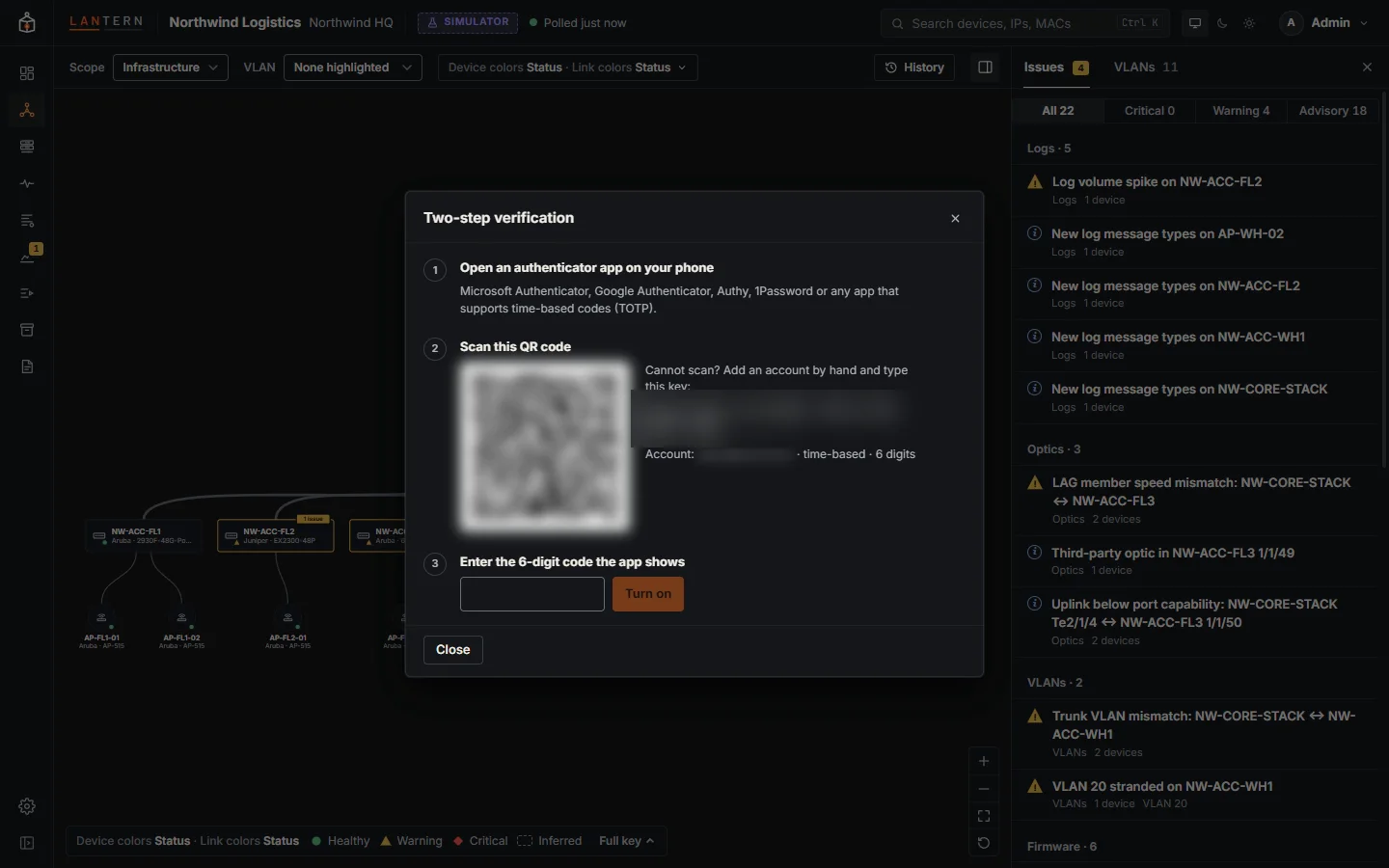
Nothing changes until step 3 succeeds. A QR code is valid for 15 minutes; after that, choose Get a new QR code.
If you signed in more than 10 minutes ago, Lantern first asks for your password (your directory password for a directory account), so that someone who finds your browser signed in cannot add their own phone.
When it is turned on, Lantern signs you out of every other browser where you were signed in. If you turned it on because you think someone knows your password, that ends their access too.
Sign in with a code
After your username and password, enter the code your app is showing now.
- That code is not right: check that your phone sets its time automatically (codes depend on the clock), and type the newest code.
- That code was already used: each code works once. Wait for the next one; a new code appears every 30 seconds.
- After 5 wrong codes in 15 minutes, sign-in to that account is refused for 5 minutes.
- The code step waits 5 minutes. After that, or after 5 wrong codes, enter your username and password again.
Lost your phone? Choose Lost your phone? Use a recovery code and enter one of your saved codes, with or without the dash. Each recovery code works once. Then move to your new phone (below) to get new codes.
No phone and no recovery codes? Ask a Lantern administrator to reset your two-step verification.
Manage it
From the account menu, Two-step verification:
- Move to a new phone: confirm with a current code or a recovery code, scan the new QR code and enter a code from the new phone. The old phone keeps working until the new one is confirmed. You get new recovery codes, and other browsers are signed out.
- Get new codes: replaces all 10 recovery codes; the old ones stop working. Lantern warns you when 3 or fewer are left.
- Turn off: confirm with a current code or a recovery code. Not available when the policy requires two-step verification for you. Other browsers are signed out.
These changes need a code from your phone or an unused recovery code: your password alone is not enough. With two-step verification on, Change password also asks for a code.
For administrators
Require it
Settings › Sign-in › Two-step verification sets the policy:
| Policy | Effect |
|---|---|
| Optional (default) | Anyone can turn it on from their account menu. |
| Required for administrators | Administrators with a local or directory account must set it up right after they sign in; everyone else may. |
| Required for everyone | Everyone with a local or directory account must set it up right after they sign in. |
Someone who must set it up is taken to the setup page and cannot use anything else until it is done (they can still sign out). This applies straight away to people who are already signed in, including you: if you have not set it up yourself, Lantern asks you to as soon as you save.
See who has it
The Two-step column on Settings › Users shows On, Off, Not set up (the policy requires it and they will be asked at their next sign-in) or By sign-in provider (cloud accounts).
Reset someone's two-step verification
For someone who has lost both their phone and their recovery codes, Reset two-step on the Users tab turns it off for them and signs them out everywhere. If the policy requires it, they set it up again at their next sign-in; otherwise they sign in with their password alone.
You cannot reset your own; use your account menu instead.
Try sign-in
Try sign-in on the LDAP settings never asks for a code. Its report adds a Two-step verification line saying what a real sign-in would do for that person: ask for a code, ask them to set it up, or nothing.
The last administrator has lost their phone
If no administrator can sign in (no phone, no recovery codes and no other administrator), on the Lantern machine:
- Stop the Lantern service.
- Open
users.jsonin the data folder (C:\ProgramData\Lanternor/var/lib/lanternwhen installed as a service). - Find the administrator's entry (for example
"username": "admin") and delete its whole"mfa"object, from"mfa": {to the matching}, and the comma before it. - Save the file and start Lantern. That administrator signs in with their password alone, or is asked to set up two-step verification again if the policy requires it.
Anyone who can edit users.json can do this, which is why the data folder must be readable only by the Lantern service and its administrators.
How it is protected
- Each person's secret key is generated by Lantern, stored encrypted, and never shown again after setup. The QR code is drawn in your browser; no outside service is involved.
- Recovery codes are stored only as one-way hashes, and each works once.
- A code that has been used cannot be used again, and codes from about 30 seconds either side of now are accepted to allow for clock drift.
- Every sign-in with a code or recovery code, wrong code, setup, move, new set of recovery codes, turning off and administrator reset is recorded in the sign-in activity.