Docs Sign-in and users
LDAP and Active Directory
Let people sign in with their directory account, and give them roles from directory groups.
With LDAP sign-in, people use their directory username and password on Lantern's sign-in page. Lantern finds them with a read-only service account, then asks the directory to check their password by binding as them. It never writes to the directory and never stores directory passwords.
Before you start
- A service account that can read users and groups, for example
CN=svc-lantern,OU=Service Accounts,DC=northwind,DC=local. It needs no rights beyond reading; a normal domain user is enough in Active Directory. - Groups for Lantern roles, for example Lantern Admins, Lantern Operators and Lantern Viewers. Nested groups work in Active Directory.
- LDAPS on your domain controllers (port 636), or StartTLS on 389. Have your internal CA certificate (PEM) ready if the collector does not already trust it.
- Network access from the collector to the domain controller on 636 or 389.
Set it up
Open Settings › Sign-in, and next to LDAP / Active Directory choose Set up.
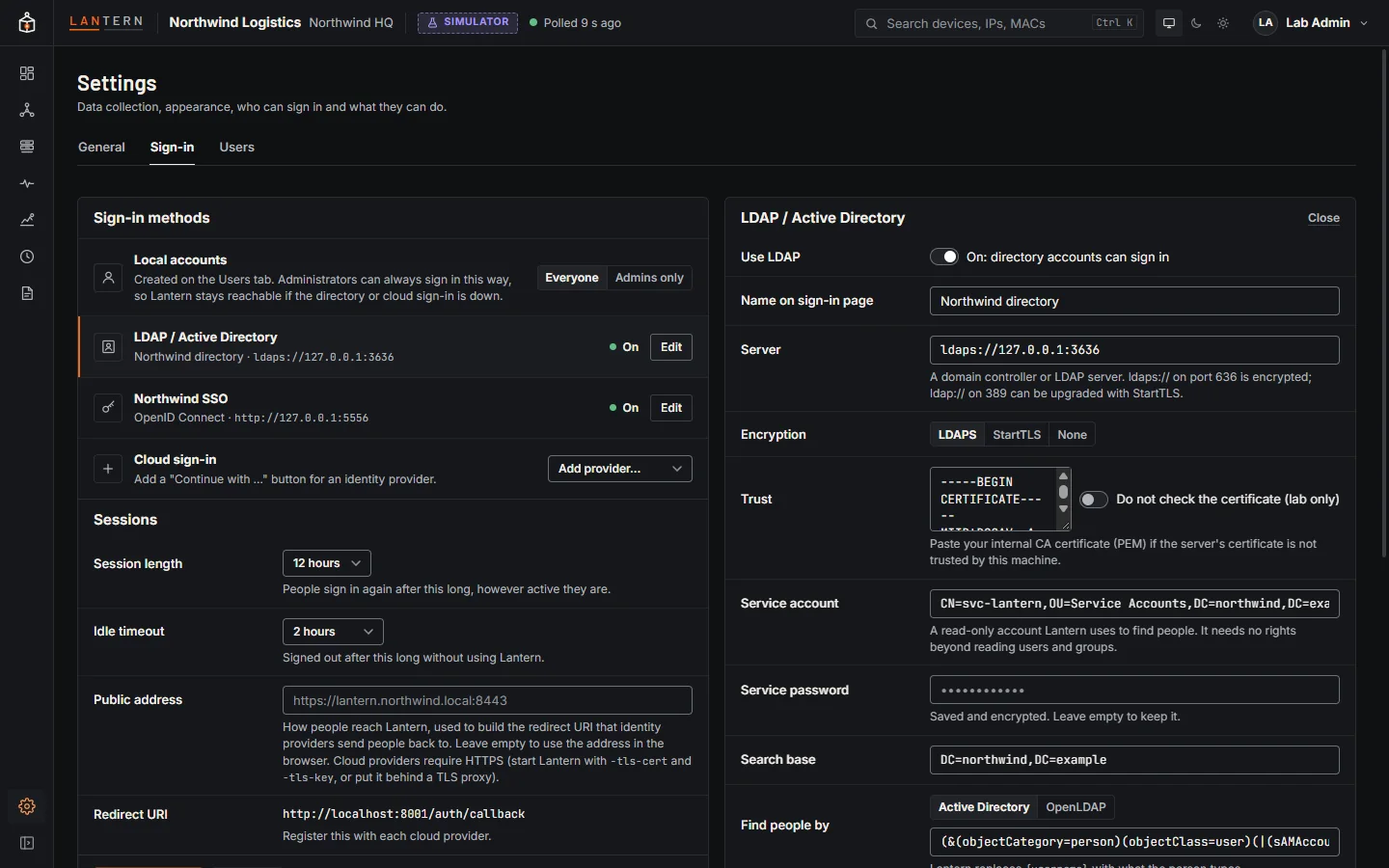
| Field | What to enter |
|---|---|
| Use LDAP | Turn on when you are ready; people can use it as soon as you save. |
| Name on sign-in page | Shown under the username field, for example Northwind directory. |
| Server | ldaps://dc01.northwind.local:636, or ldap://dc01.northwind.local:389 with StartTLS. |
| Encryption | LDAPS or StartTLS. None sends passwords in clear text and is shown with a warning. |
| Trust | Paste your internal CA certificate if the server's certificate is not trusted by the collector machine. Do not check the certificate exists for labs only. |
| Service account | The service account's DN. Leave empty for anonymous search (rarely allowed). |
| Service password | Stored encrypted with auth.key; never shown again. Leave empty later to keep it. |
| Search base | Where to look for people, such as DC=northwind,DC=local. |
| Find people by | Active Directory matches the sAMAccountName or the userPrincipalName; OpenLDAP matches uid. Edit the filter for anything else: {username} is replaced by what the person types, safely escaped. |
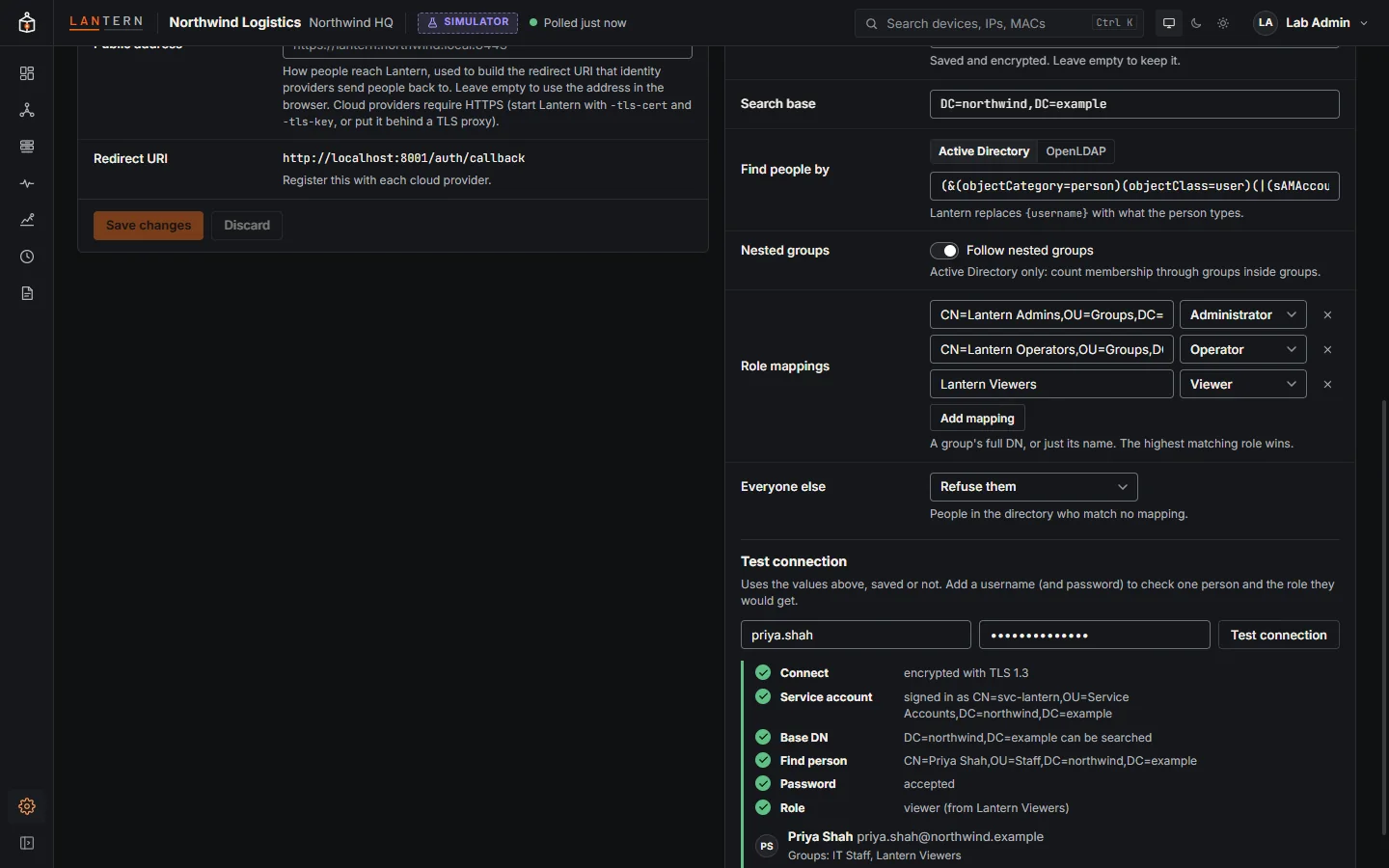
| Nested groups | Active Directory: count membership through groups inside groups. |
| Role mappings | A group's full DN or just its name, and the Lantern role it gives. |
| Everyone else | Refuse them (recommended) or a default role for people in no mapped group. |
Choose Save changes at the bottom of the left column.
Test it
Before turning it on for everyone, use Test connection at the bottom of the editor. It uses the values in the form, saved or not, and checks each step: connecting (and how it is encrypted), the service account, the search base. Add a username, and optionally that person's password, to see the entry it finds, their groups and the role they would get.
How Lantern handles passwords
- An empty password is always refused (directories treat an empty-password bind as anonymous and report success).
- The username is escaped before it goes into the search filter, so it cannot change the filter.
- If more than one entry matches, sign-in fails and the test says so: make the filter more specific.
Troubleshooting
| Message | Check |
|---|---|
| cannot reach the directory | Server name, port, firewall between the collector and the domain controller. |
| x509: certificate signed by unknown authority | Paste your CA certificate in Trust. |
| the directory refused the service account | Service account DN and password; account locked or expired. |
| nobody matches the user filter | Search base, filter, or the person is outside the base. |
| no role mapping matches | The person is in none of the mapped groups. Map by full DN if two groups share a name. |
| more than one directory entry matches | Make the user filter more specific. |