Docs Sign-in and users
Google Workspace
Sign in with Google Workspace accounts from your domain.
Lantern signs people in with Google over OpenID Connect. Google's ID token says who someone is and which Workspace domain they belong to, but carries no groups, so roles come from email addresses and a default role for your domain.
Before you start
- Lantern served over HTTPS, with Public address set in Settings › Sign-in. Google accepts HTTP redirect URIs only for
localhost. - A Google Cloud project in your Workspace organisation.
1. Create an OAuth client
- In the Google Cloud console, open APIs & Services › OAuth consent screen and configure it with user type Internal, so only accounts in your organisation can use it.
- Open APIs & Services › Credentials › Create credentials › OAuth client ID.
- Application type Web application, name Lantern.
- Under Authorized redirect URIs, add the Redirect URI from Lantern's Sign-in settings.
- Create, then copy the Client ID and Client secret.
2. Add the provider in Lantern
In Settings › Sign-in, choose Add provider… › Google Workspace.
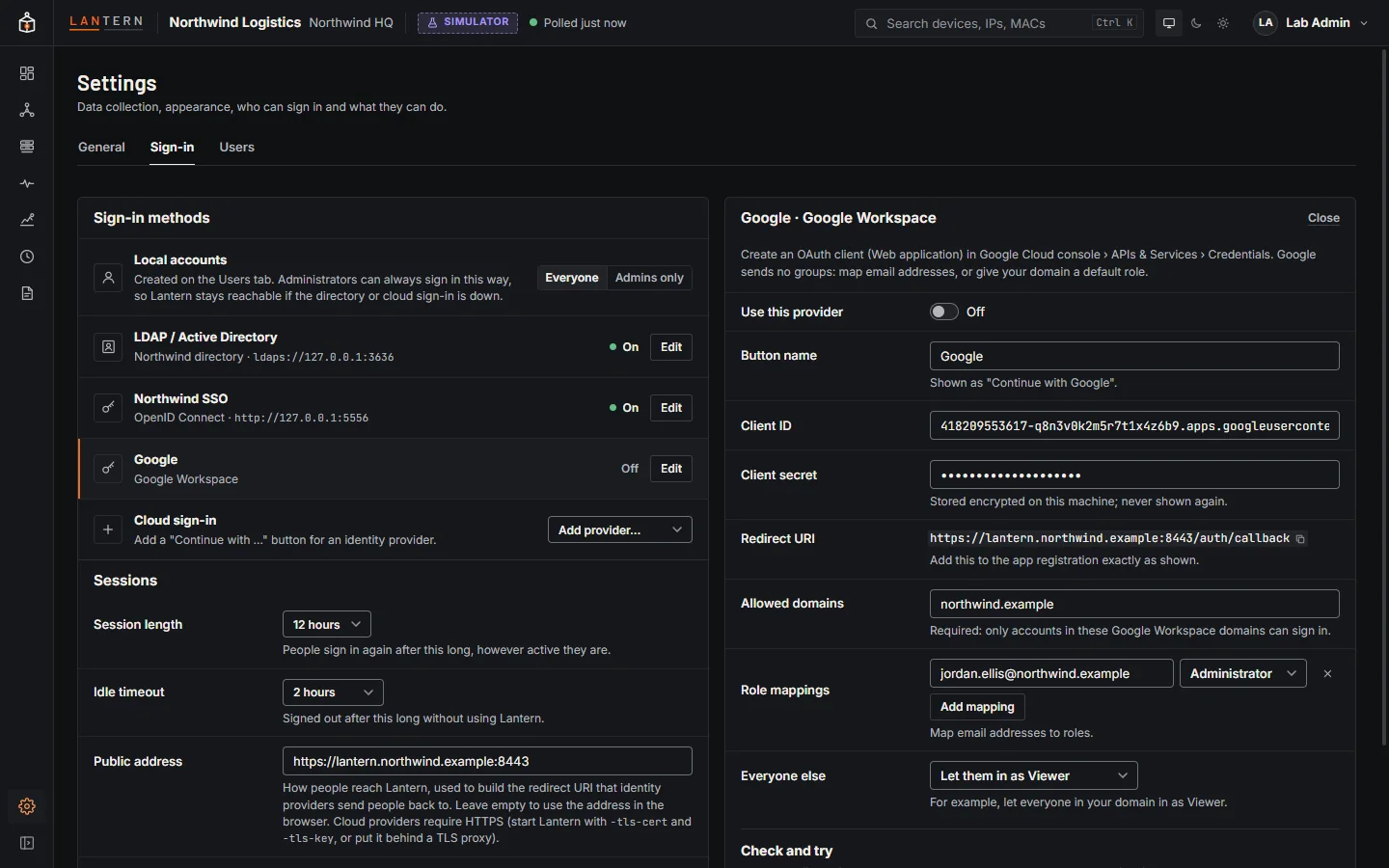
| Field | What to enter |
|---|---|
| Client ID, Client secret | From the OAuth client. The secret is stored encrypted. |
| Allowed domains | Required: your Workspace domain(s). Lantern checks the token's hosted-domain claim, so personal Google accounts are refused even if they could reach the consent screen. |
| Role mappings | Email addresses and their roles, for example your IT lead as Administrator. |
| Everyone else | Typically Let them in as Viewer, so everyone in the domain can look. |
Lantern also refuses accounts whose email Google has not verified.
Check configuration, turn on Use this provider, Save changes, then Try sign-in to see the account and role that come back.