Docs Sign-in and users
Okta
Sign in with Okta, with roles from Okta groups.
1. Create an app integration in Okta
- In the Okta Admin Console, go to Applications › Applications › Create App Integration.
- Sign-in method OIDC - OpenID Connect, application type Web Application.
- Name it Lantern. Grant type: Authorization Code.
- Sign-in redirect URIs: the Redirect URI from Lantern's Sign-in settings.
- Assignments: limit access to the groups that should use Lantern.
- Save, then copy the Client ID and Client secret.
2. Add a groups claim
So that Lantern can map Okta groups to roles, the ID token needs a groups claim.
- With the org authorization server (issuer
https://<your-org>.okta.com): in the app's Sign On tab, edit OpenID Connect ID Token and set Groups claim type to Filter, claim namegroups, for example Matches regexLantern.*. - With a custom authorization server (issuer such as
https://<your-org>.okta.com/oauth2/default): add agroupsclaim to that server under Security › API › Authorization Servers › Claims, included in the ID token.
3. Add the provider in Lantern
In Settings › Sign-in, choose Add provider… › Okta.
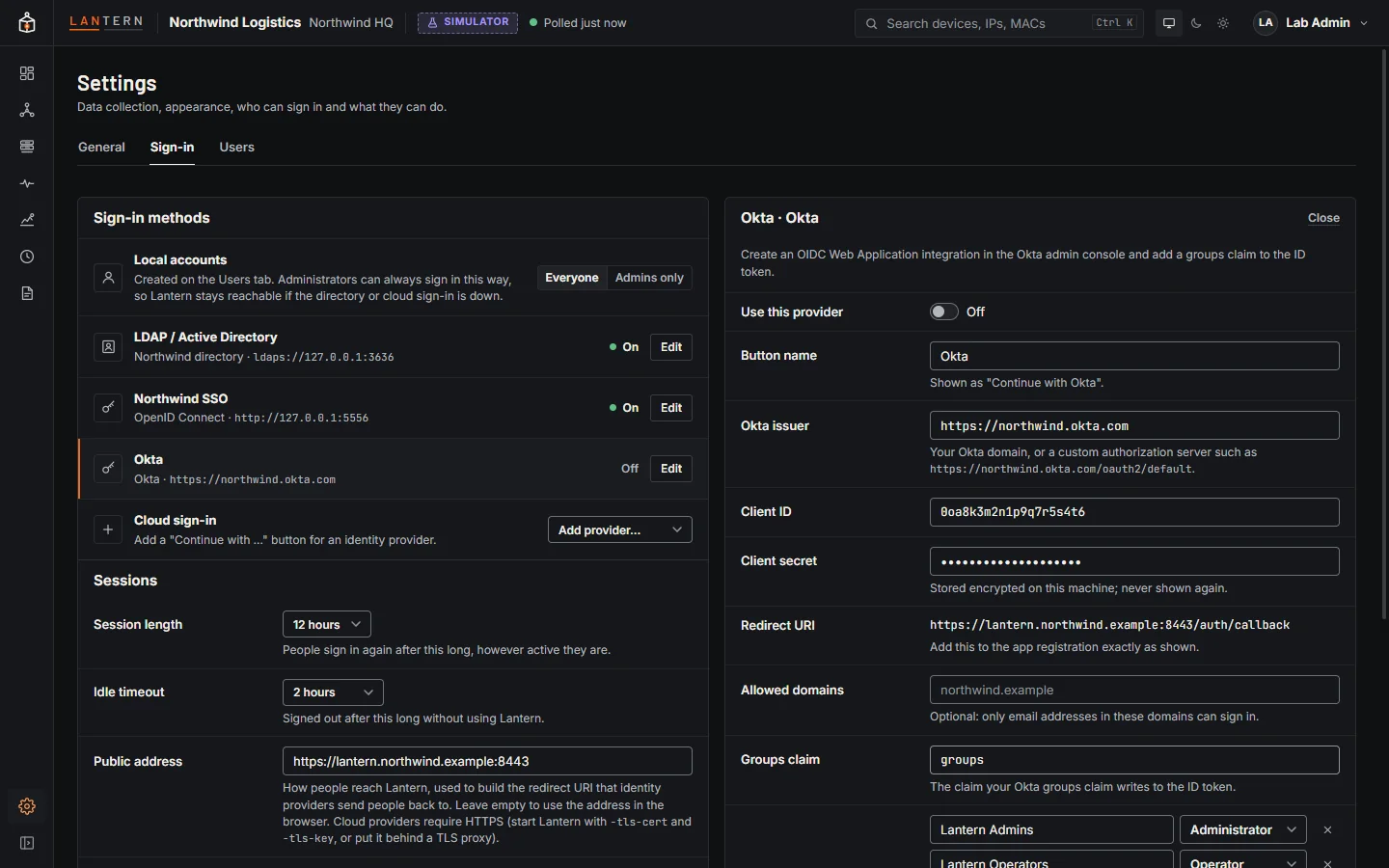
| Field | What to enter |
|---|---|
| Okta issuer | https://<your-org>.okta.com, or the custom authorization server's issuer. |
| Client ID, Client secret | From the app integration. |
| Groups claim | groups (or whatever name you gave the claim). |
| Role mappings | Okta group names and their Lantern roles. |
| Everyone else | Refuse them, or a default role. |
Check configuration, turn on Use this provider, Save changes, then Try sign-in.