Docs Get started
First sign-in
Create the first administrator, then sign in and find your way around.
Create the first administrator
A new collector has no accounts. The first visit shows Set up Lantern: enter your name, a username and a password of at least 12 characters, then Create administrator.
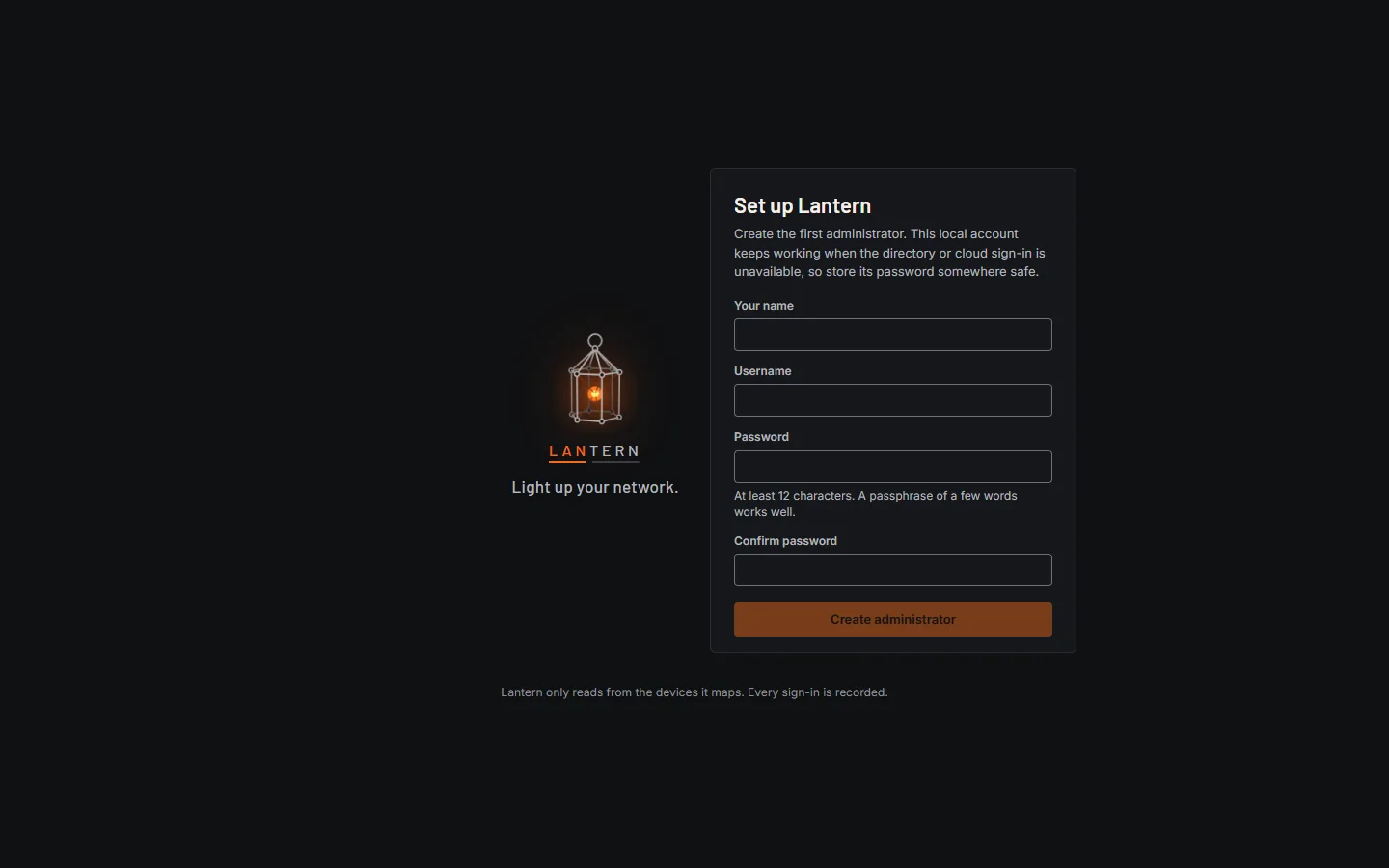
This first account is a local account with the Administrator role. It keeps working when your directory or cloud sign-in is unavailable, so store its password somewhere safe (a password manager or your break-glass process).
Setting up from another computer
If you open Lantern from a different computer than the one it runs on, the setup page also asks for a setup token. It protects the moment between installing Lantern and creating its administrator, so nobody else on the network can claim it first. The token is:
- printed in the Lantern console when it starts,
- saved in
setup-token.txtin the data folder (C:\ProgramData\Lanternor/var/lib/lanternwhen installed as a service).
The token and its file are removed once the administrator exists.
Sign in
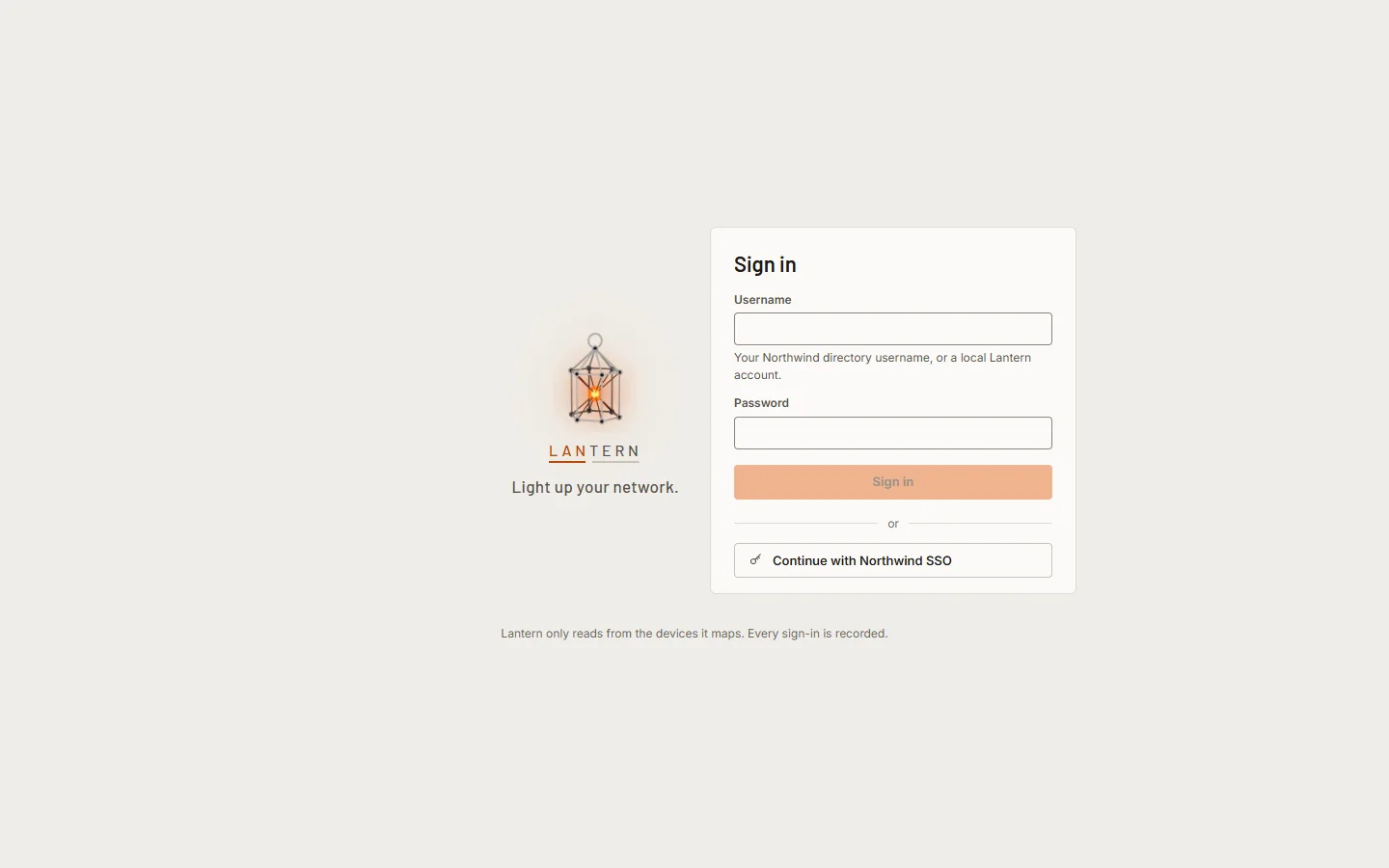
- Username and password: a local account, or (when LDAP is set up) your directory username, such as
jordan.ellisorjordan.ellis@northwind.example. - Continue with …: one button per cloud identity provider your administrator has turned on.
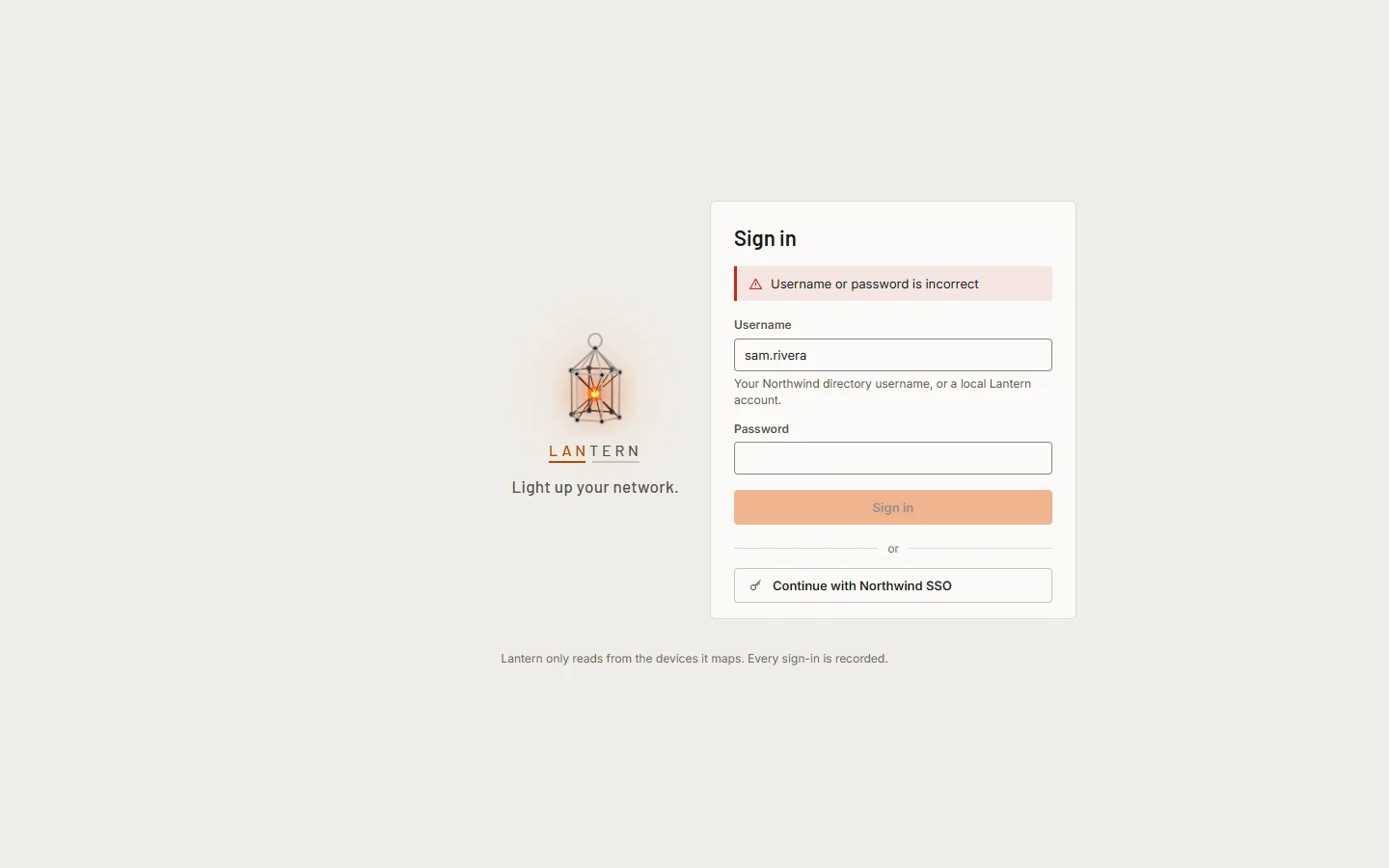
Wrong passwords show one message, whatever was wrong, so the page does not reveal which usernames exist. After five failed attempts in 15 minutes from one address or for one username, sign-in pauses for five minutes.
Find your way around
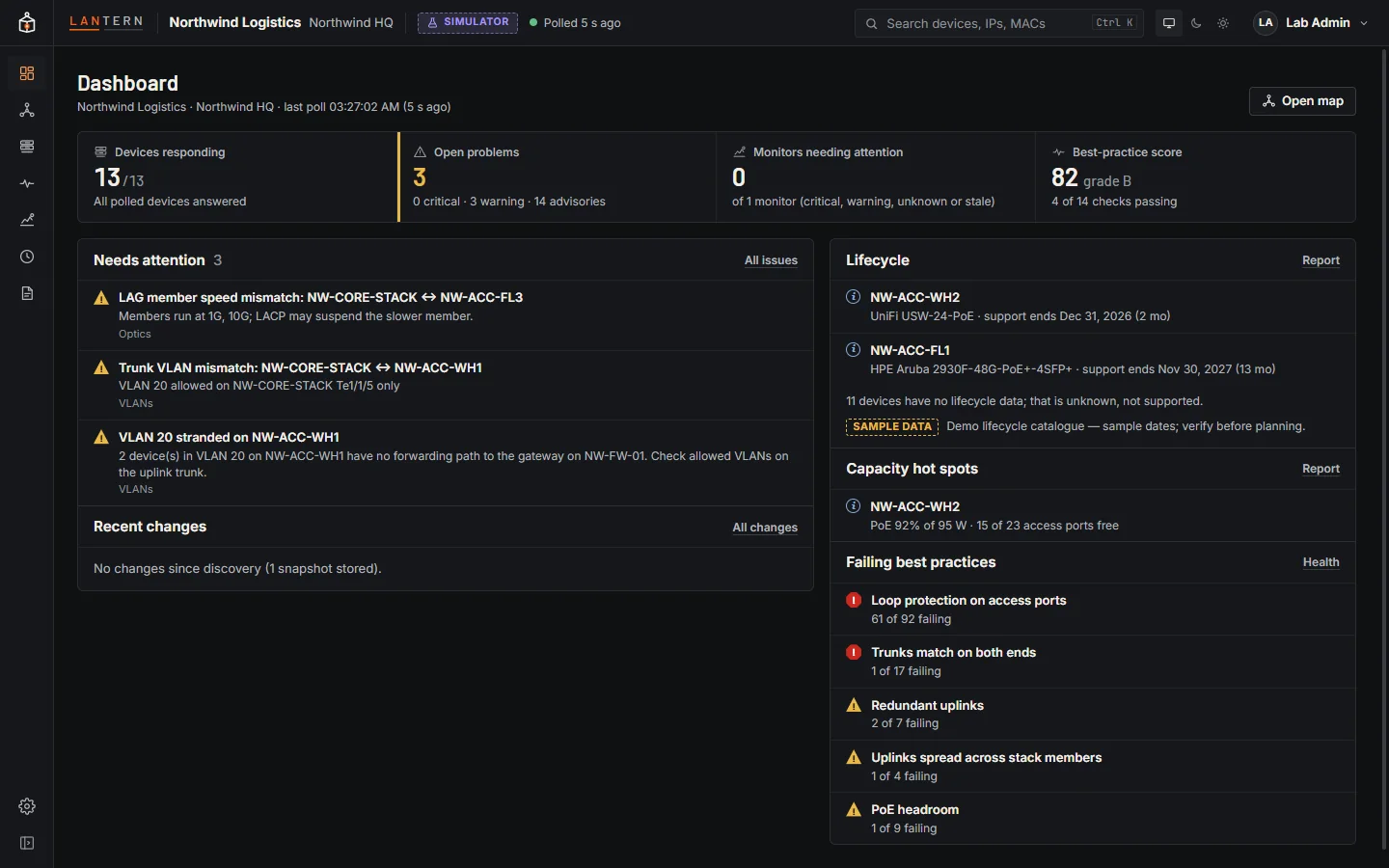
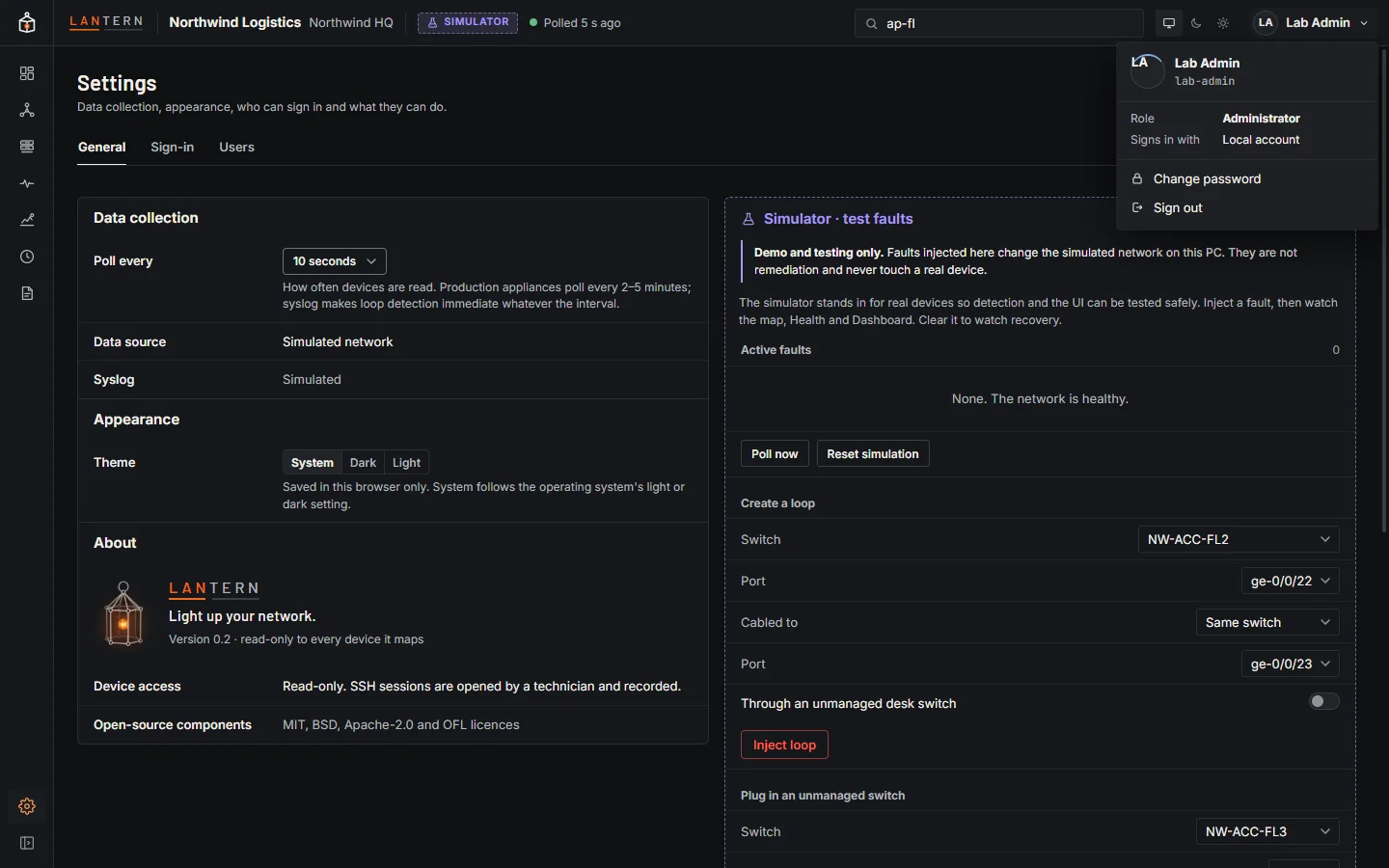
- The sidebar on the left has the sections: Dashboard, Map, Inventory, Health, Monitoring, Changes, Reports, and Settings at the bottom. On wide screens it shows labels; on laptops it is icons only. Collapse or Expand at the bottom switches it, and the choice is remembered.
- The top bar shows the customer and site, the data source (for example SIMULATOR), how long ago the last poll finished, search (Ctrl K) and the theme (system, dark or light).
- Your account menu is at the top right: your role, where your account comes from, Change password (local accounts) and Sign out.
Next: Configure the collector to point Lantern at your network, then set up sign-in for your team.