Docs Sign-in and users
Microsoft Entra ID
Sign in with Microsoft 365 and Entra ID accounts, with roles from app roles or groups.
Lantern signs people in with Microsoft Entra ID (formerly Azure AD) over OpenID Connect. People sign in at Microsoft, with your tenant's MFA and Conditional Access, and Lantern receives a signed ID token saying who they are.
Before you start
- Lantern served over HTTPS at an address people can reach, and that address set as Public address in Settings › Sign-in. Entra accepts plain HTTP redirect URIs only for
localhost. - Permission to create app registrations in your tenant.
1. Register an app in Entra
- In the Microsoft Entra admin center, go to App registrations › New registration.
- Name it Lantern. Supported account types: Accounts in this organizational directory only.
- Redirect URI: platform Web, and the Redirect URI from Lantern's Sign-in settings, for example
https://lantern.northwind.local:8443/auth/callback. - Register, then copy the Application (client) ID and the Directory (tenant) ID from the overview.
- In Certificates & secrets, create a client secret and copy its Value (shown once). Note its expiry date.
2. Decide how roles are assigned
App roles (recommended). In the app registration, open App roles and create one role per Lantern role, for example values Lantern.Admin, Lantern.Operator and Lantern.Viewer (allowed member types: users and groups). Then, in Enterprise applications › Lantern › Users and groups, assign people or groups to those roles. The roles arrive in the token's roles claim, however many groups someone is in.
Groups. Alternatively, in Token configuration › Add groups claim, add security groups to the ID token. The token then lists group object IDs (GUIDs), which is what you map in Lantern. If someone is in too many groups, Entra leaves the groups out of the token altogether; Lantern says so when it happens. App roles avoid this.
3. Add the provider in Lantern
In Settings › Sign-in, choose Add provider… › Microsoft Entra ID.
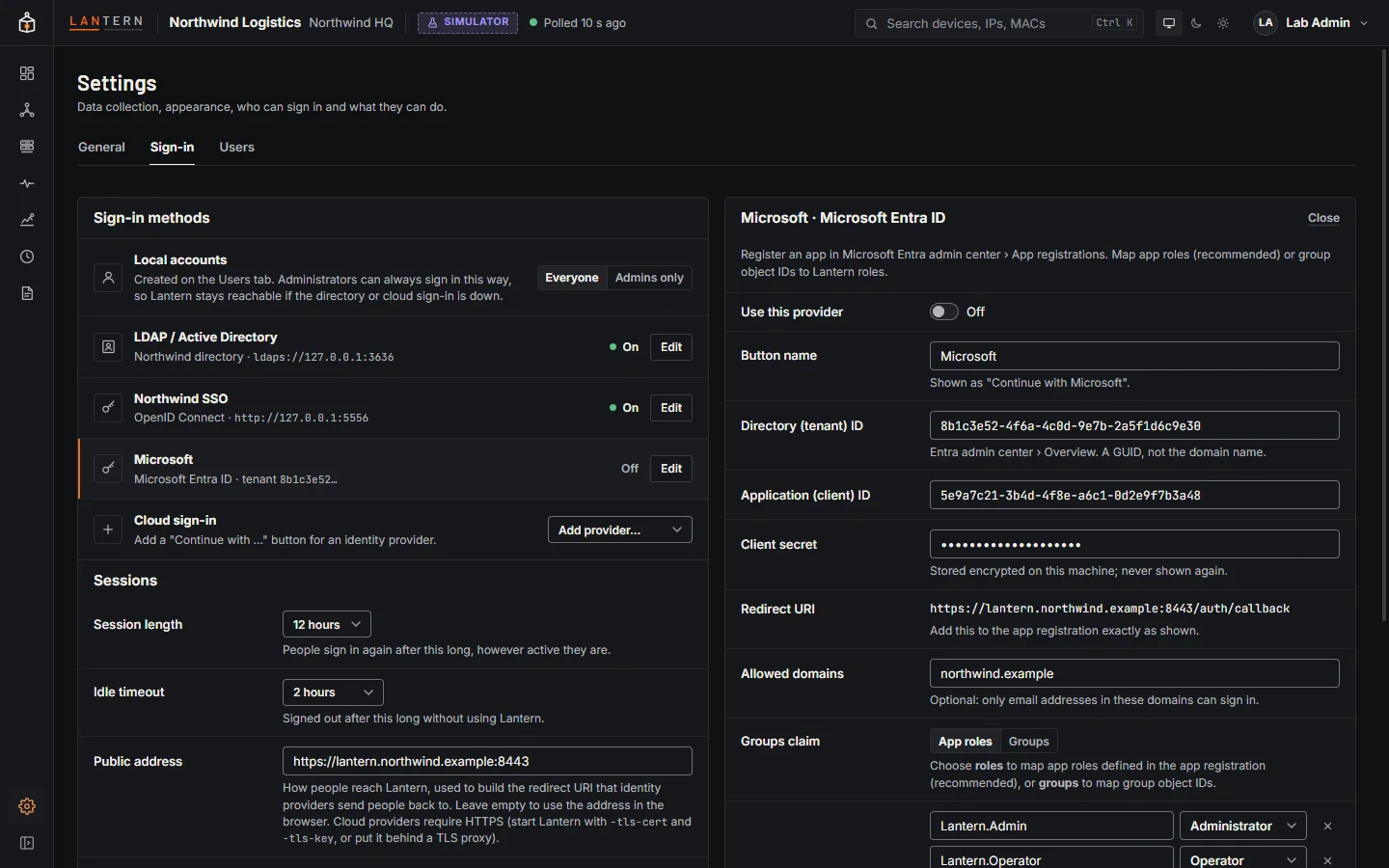
| Field | What to enter |
|---|---|
| Button name | Shown as Continue with …, for example Microsoft. |
| Directory (tenant) ID | The GUID from the app's overview, not your domain name. |
| Application (client) ID | From the app's overview. |
| Client secret | The secret's Value. Stored encrypted; leave empty later to keep it. |
| Allowed domains | Optional: only these email domains may sign in, for example northwind.example. |
| Groups claim | App roles (the roles claim) or Groups (group object IDs). |
| Role mappings | For app roles: Lantern.Admin → Administrator and so on. For groups: group object IDs. Email addresses work too. |
| Everyone else | Refuse them, or a default role for anyone in your tenant who matches no mapping. |
Check configuration reads Entra's discovery document for your tenant and confirms the endpoints. Turn on Use this provider and Save changes. Then Try sign-in signs in at Microsoft and shows who came back and the role they would get, without changing who is signed in to Lantern.
Troubleshooting
| Message | Check |
|---|---|
| The directory (tenant) ID is a GUID | Use the Directory (tenant) ID from the app overview, not northwind.onmicrosoft.com. |
| AADSTS50011: redirect URI mismatch (at Microsoft) | The redirect URI in the app registration must match Lantern's exactly, including port. |
| the provider did not accept the sign-in code | Client secret wrong or expired; create a new one and paste its Value. |
| no role mapping matches this account | The person has no assigned app role, or the groups claim is missing or has too many groups. |