Docs Get started
Check collection
See which devices answer, which credential each one uses, and why a device is not being polled.
Open Settings › General. When Lantern polls real devices, the right-hand column shows Polled devices.
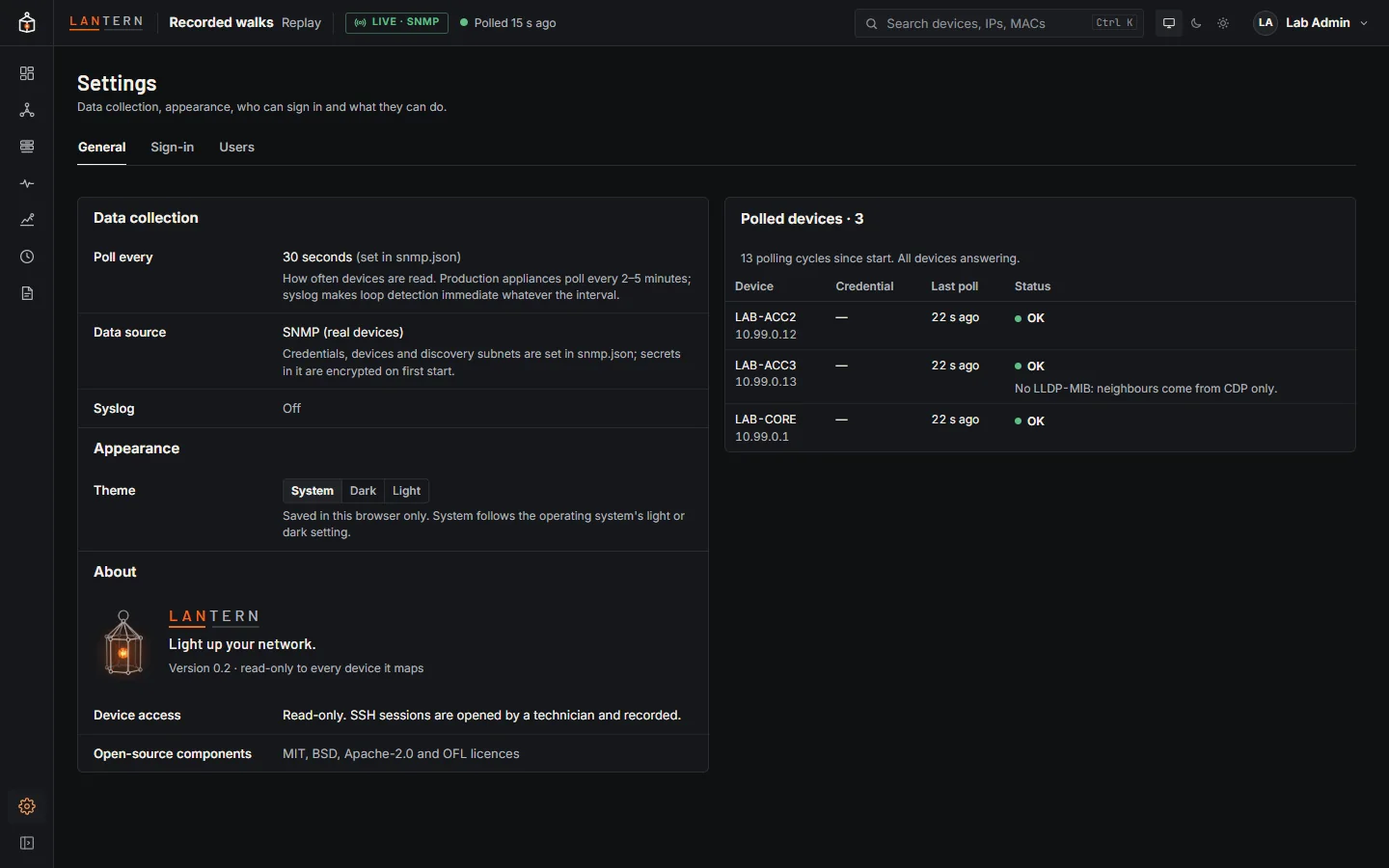
| Column | Shows |
|---|---|
| Device | The device's name once it has answered, its address, and discovered if Lantern found it through LLDP or CDP. |
| Credential | The credential profile that answered, and its security level (never the secret). |
| Last poll | When the device last answered, and how long the poll took. |
| Status | OK, Waiting (not polled yet), or an error. |
The note above the table says how many cycles have run and how many devices are not answering.
Errors
| Error | Usually means |
|---|---|
| No answer | The device did not reply: wrong address, firewall or ACL blocking UDP 161, SNMP not enabled, or (SNMP v2c) a wrong community. |
| Login failed | SNMPv3 user, passphrases or protocols do not match the device. |
| Unreachable | No route to the address. |
| SNMP error | The device answered with an error, for example a view that hides what Lantern needs. |
| No credential | No profile answered; check the credential list. |
Syslog
When syslog is on, Settings › General › Syslog shows the listening address, messages received, the last message, the busiest senders, and anything dropped (each sender is limited to 200 messages a second, with a queue of 20,000 for bursts).
The data source badge
The top bar shows where data comes from: LIVE · SNMP for real devices, SIMULATOR for the demo network, REPLAY for recorded walks, HISTORY when you are looking at a past snapshot, and DISCONNECTED when the browser cannot reach the collector.