Docs Use Lantern
The map
Read the map, choose what it shows, highlight a VLAN, colour links by speed or cable, and search.
What you see
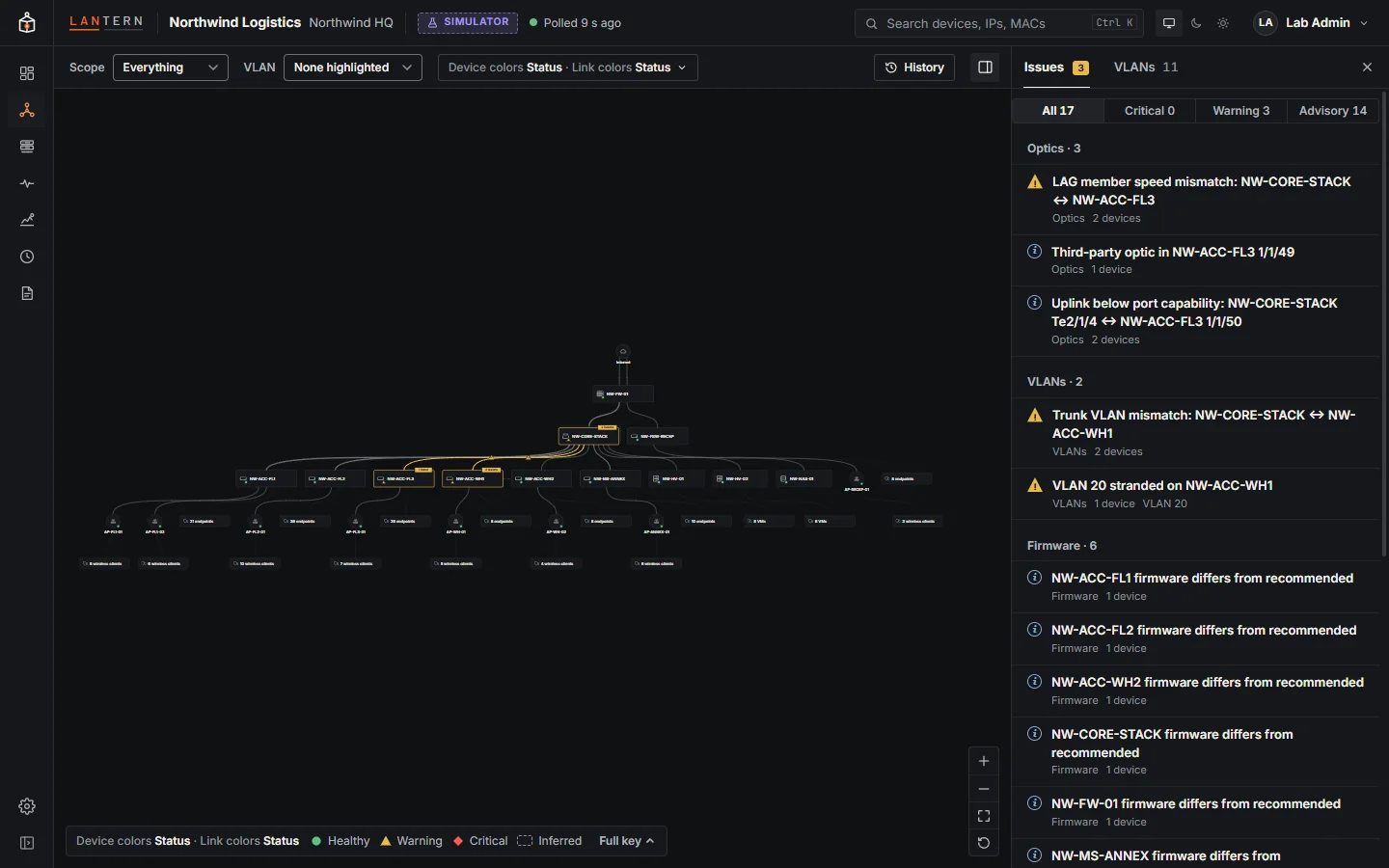
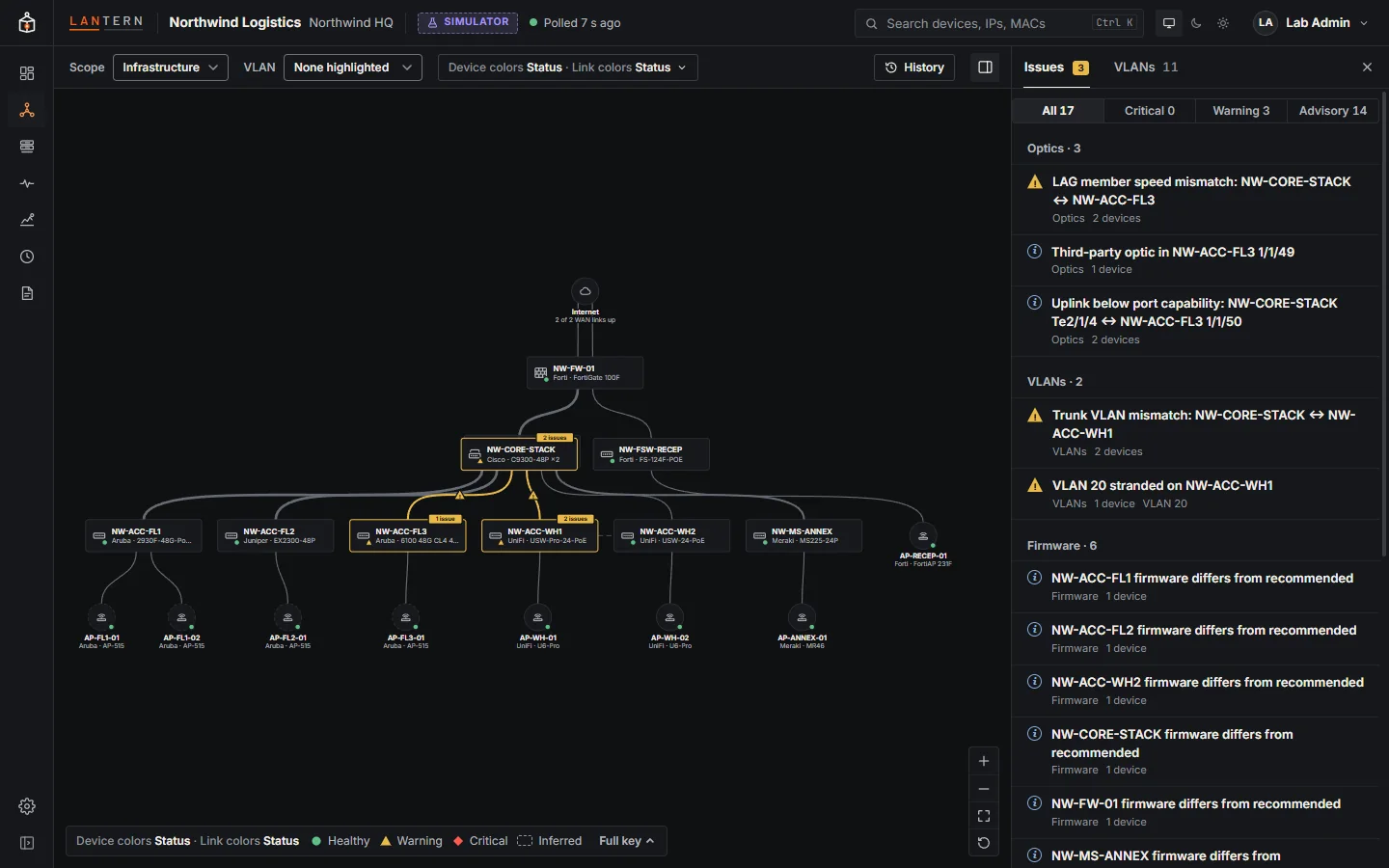
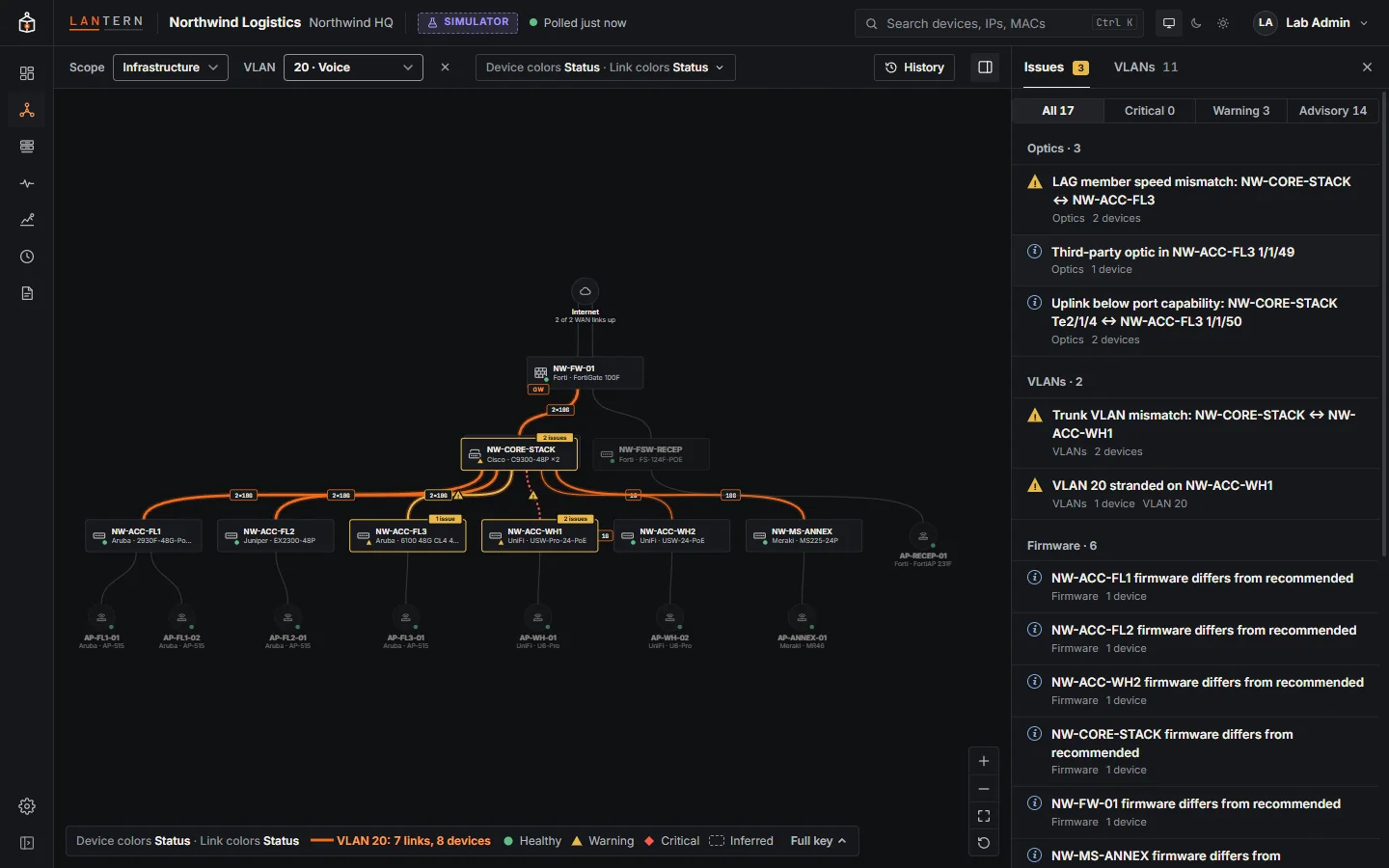
- Switches, firewalls and servers are cards; access points are circles; groups of endpoints are dashed pills.
- Every device has a status mark: a green dot (healthy), a yellow triangle (warning) or a red diamond (critical). Devices with problems also get an outline and an N issues tag. Healthy devices stay quiet.
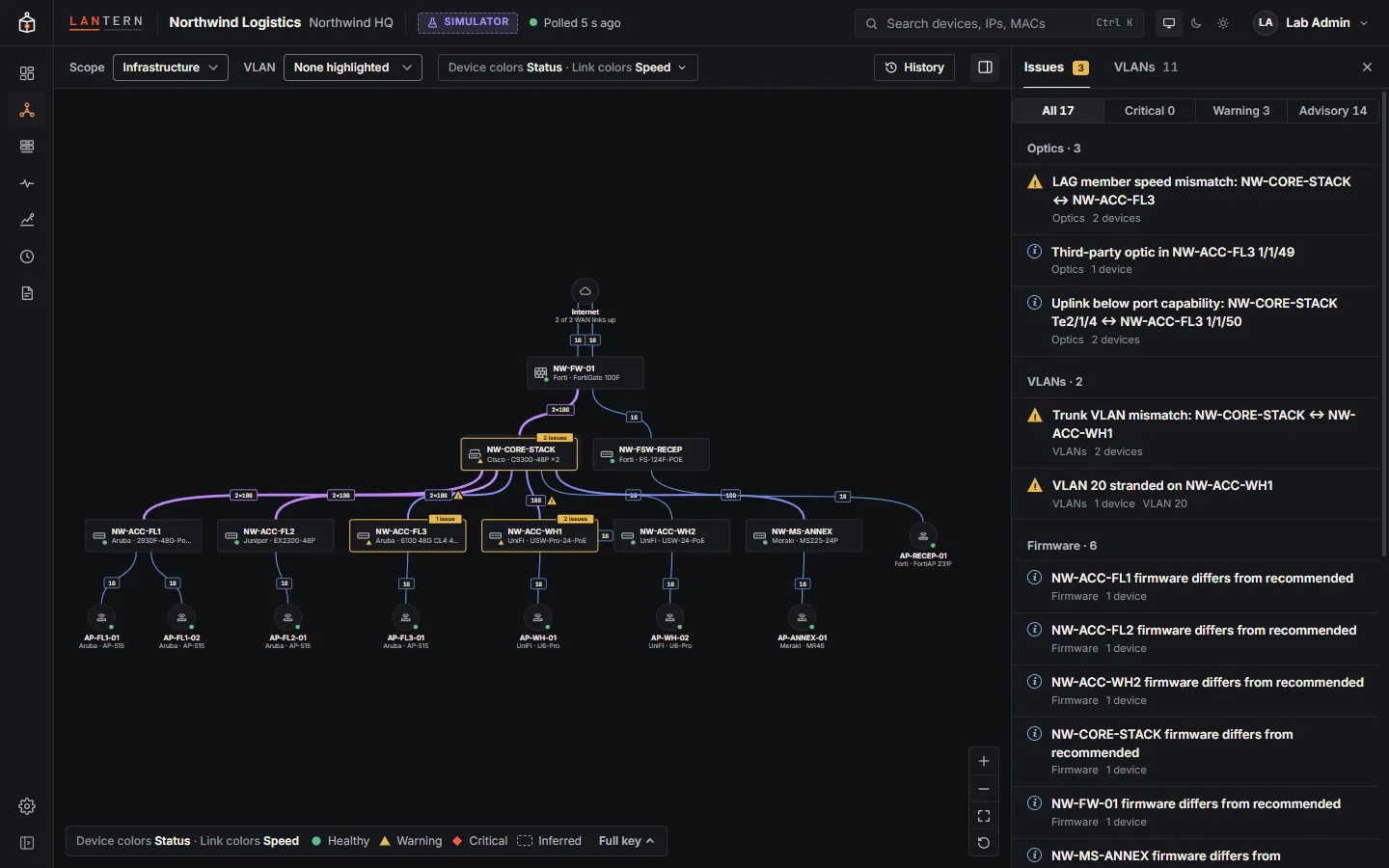
- Links are curves, thicker for faster links. A link aggregation group is drawn as one link with its member count (lag1 ×2) when you select one of its devices.
- Dashed frames and dash-dot links are inferred: Lantern saw them but could not poll them directly (for example an unmanaged switch, or a link seen from one side only).
- Red dashed links are down, faded dashed links are blocked by spanning tree, and links in a loop or flooding are red or orange.
The toolbar
| Control | What it does |
|---|---|
| Scope | Backbone (switches and firewalls), Infrastructure (plus access points), or Everything (plus endpoints). |
| VLAN | Highlight one VLAN: the links that carry it light up amber and devices outside it fade. |
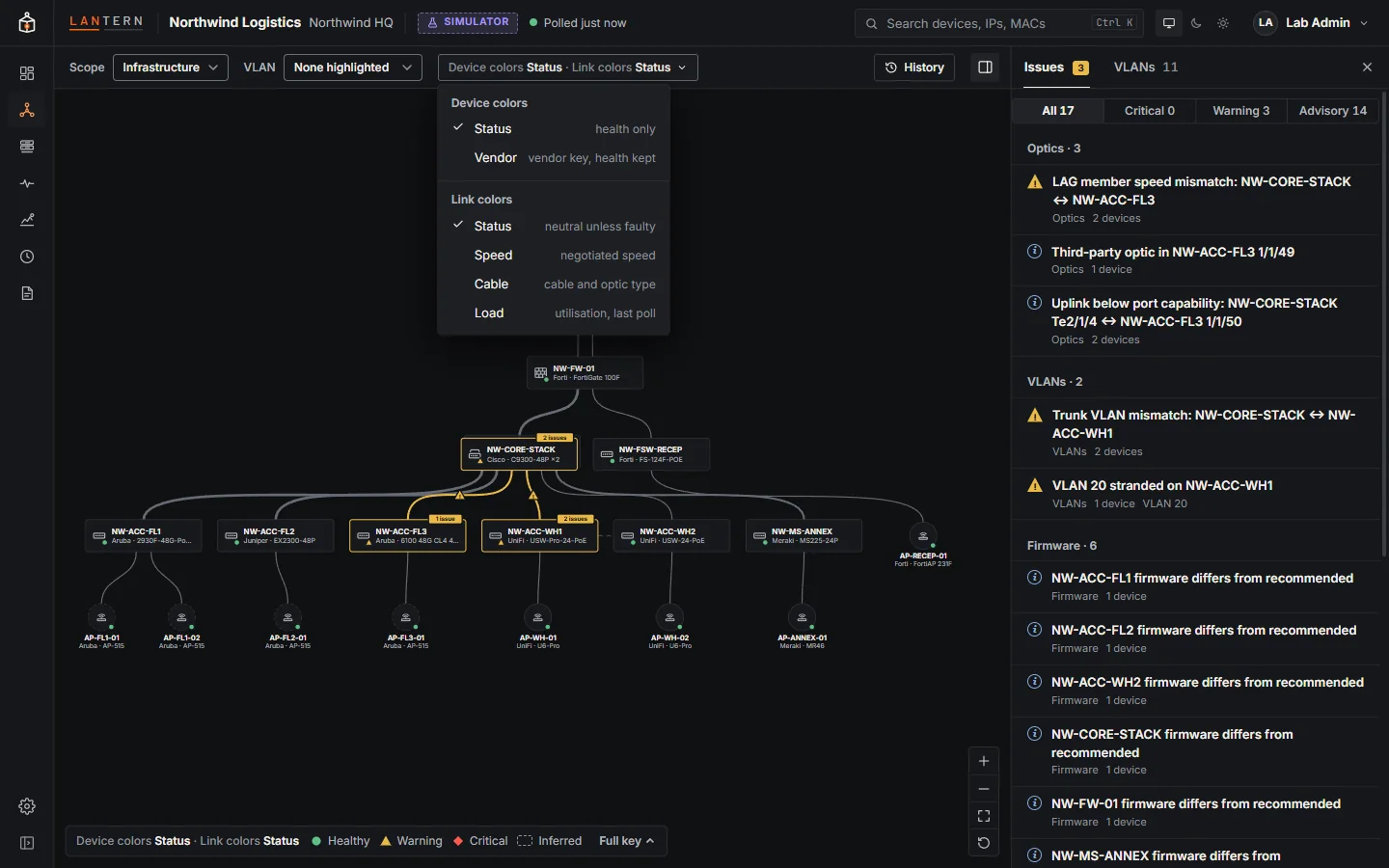
| Colors | Device colors: Status (health only) or Vendor. Link colors: Status, Speed, Cable (copper, fibre, DAC, wireless) or Load (utilisation at the last poll). |
| History | Step back to an earlier snapshot. See History. |
| Panel | Show or hide the issues and VLANs panel on the right. |
The legend at the bottom left always names the views that are on and explains the marks; Full key shows everything.
Moving around
- Drag the background to pan, scroll or pinch to zoom, and use the buttons at the bottom right: zoom in, zoom out, Fit to screen (0), and Reset layout.
- Drag a device to move it. Positions are remembered in this browser; Reset layout forgets them.
- The map keeps fitting itself to the window until you pan or zoom; after that, new polls never move it.
Selecting
Click a device or link to open its details on the right (see Devices). The selection gets an amber ring, and its links light up. Escape closes the panel.
Search
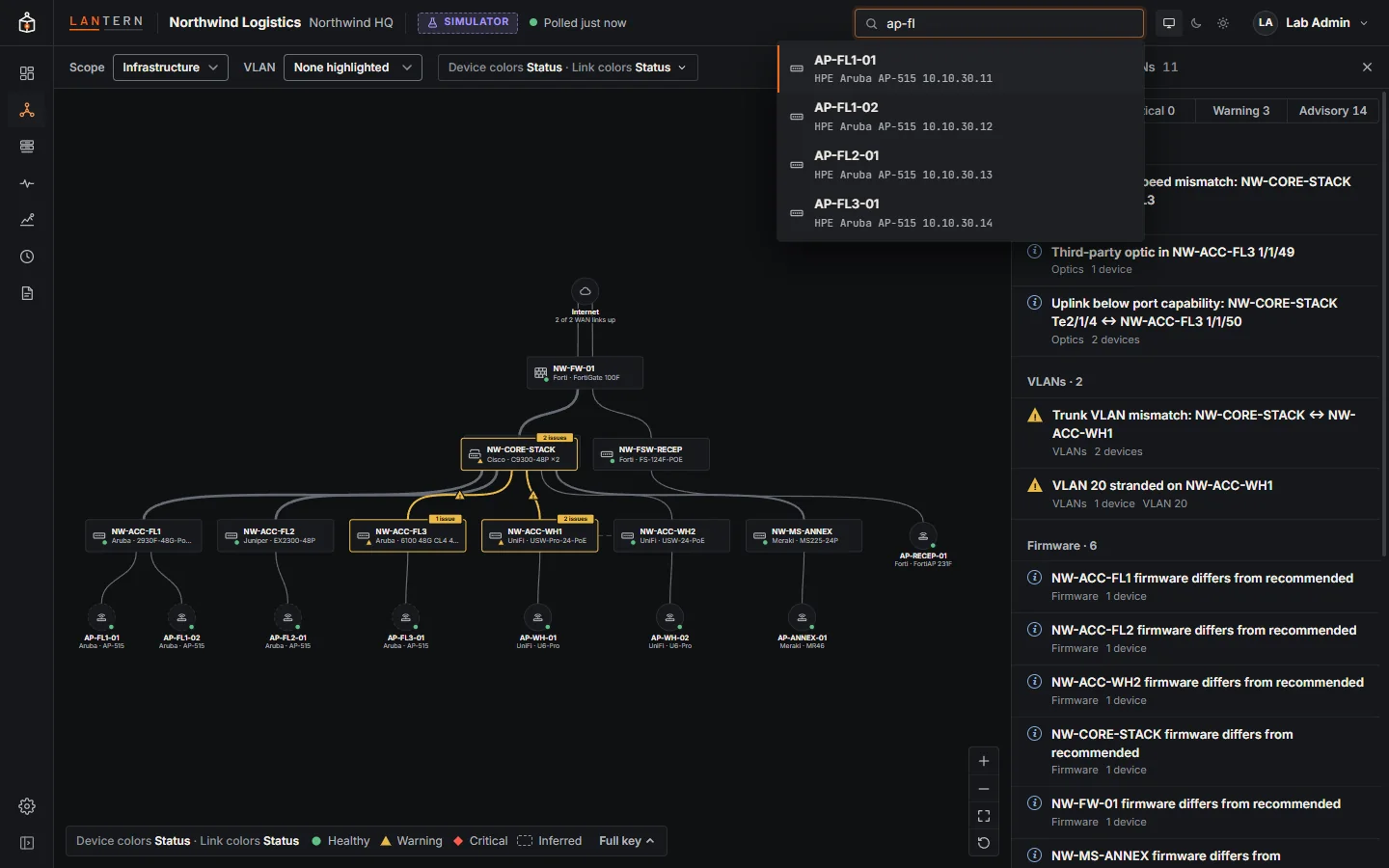
Press Ctrl K (or click the search box) and type part of a device name, IP address or MAC address. Choose a result to select it and centre it on the map.
The side panel
With nothing selected, the right-hand panel lists Issues, grouped by category and filterable by severity, and VLANs. Expand an issue to see its detail and Show on map, Open incident or Highlight VLAN. The panel can be resized by dragging its edge (or with the arrow keys), and the width is remembered.