Docs Use Lantern
Backup and changes
Versioned configuration backups of your switches and firewalls, who probably changed what, and the event log, device sessions and snapshots.
The Backup page keeps a history of every managed device's configuration: read daily and after changes, with what changed between any two versions and who probably made each change. Its second tab, All changes, is the event log, the recorded SSH sessions and the saved snapshots.
Lantern only reads configurations. It never sends a configuration to a device. See What Lantern sends to devices.
Configuration backups
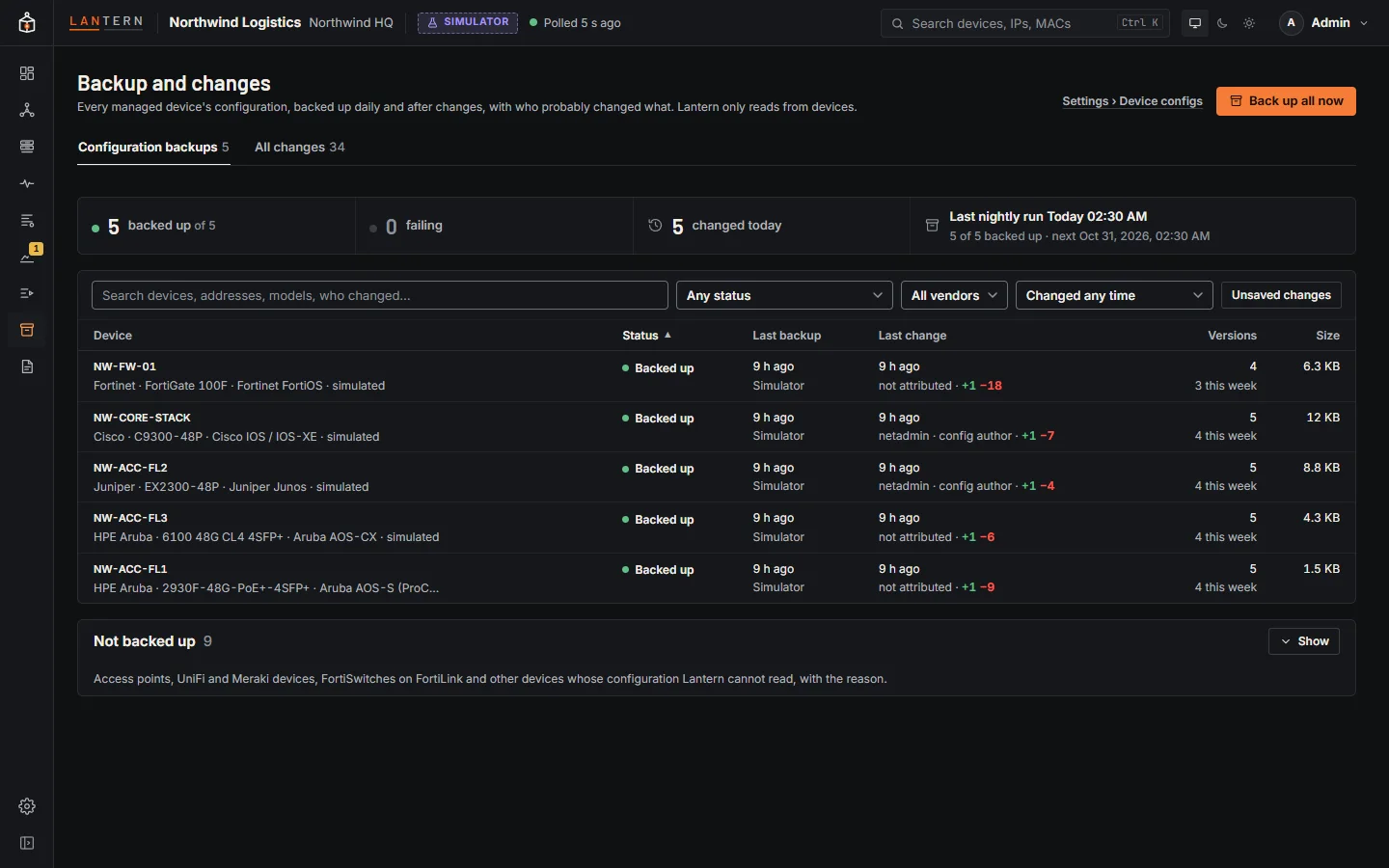
The summary at the top shows how many devices are backed up, how many are failing (and how many of those wait for a host key to be approved), how many changed today, and how the last nightly run went and when the next one is. Select a count to filter the table by it.
Each row is one device:
| Column | Shows |
|---|---|
| Device | Name, vendor, model and platform. |
| Status | Backed up, a failure with its reason, Approve host key, No login profile, Not set up, Waiting for first backup or No longer in the network. Backing up… or Queued while a backup runs, and Unsaved changes when the running configuration differs from the saved one. |
| Last backup | When the configuration was last read. |
| Last change | When it last changed, who probably made the change, and how many lines were added and removed. |
| Versions | How many versions are stored, and how many changes there were this week. |
| Size | The size of the newest version. |
Search, filter by status, vendor and when the device changed (today, the last 24 hours, the last 7 days), or show only devices with Unsaved changes. Columns sort.
Back up all now (operators and administrators) reads every device straight away. Administrators also get a link to Settings › Device configs.
Not backed up
Devices Lantern cannot back up are listed at the bottom, folded away, each with the reason: access points, UniFi devices (their configuration lives in the UniFi controller: back up the controller), Meraki devices (Meraki has no configuration export), FortiSwitches managed over FortiLink (they are part of the FortiGate's configuration), unmanaged switches, servers, and other vendors.
One device
Select a device to open its history.
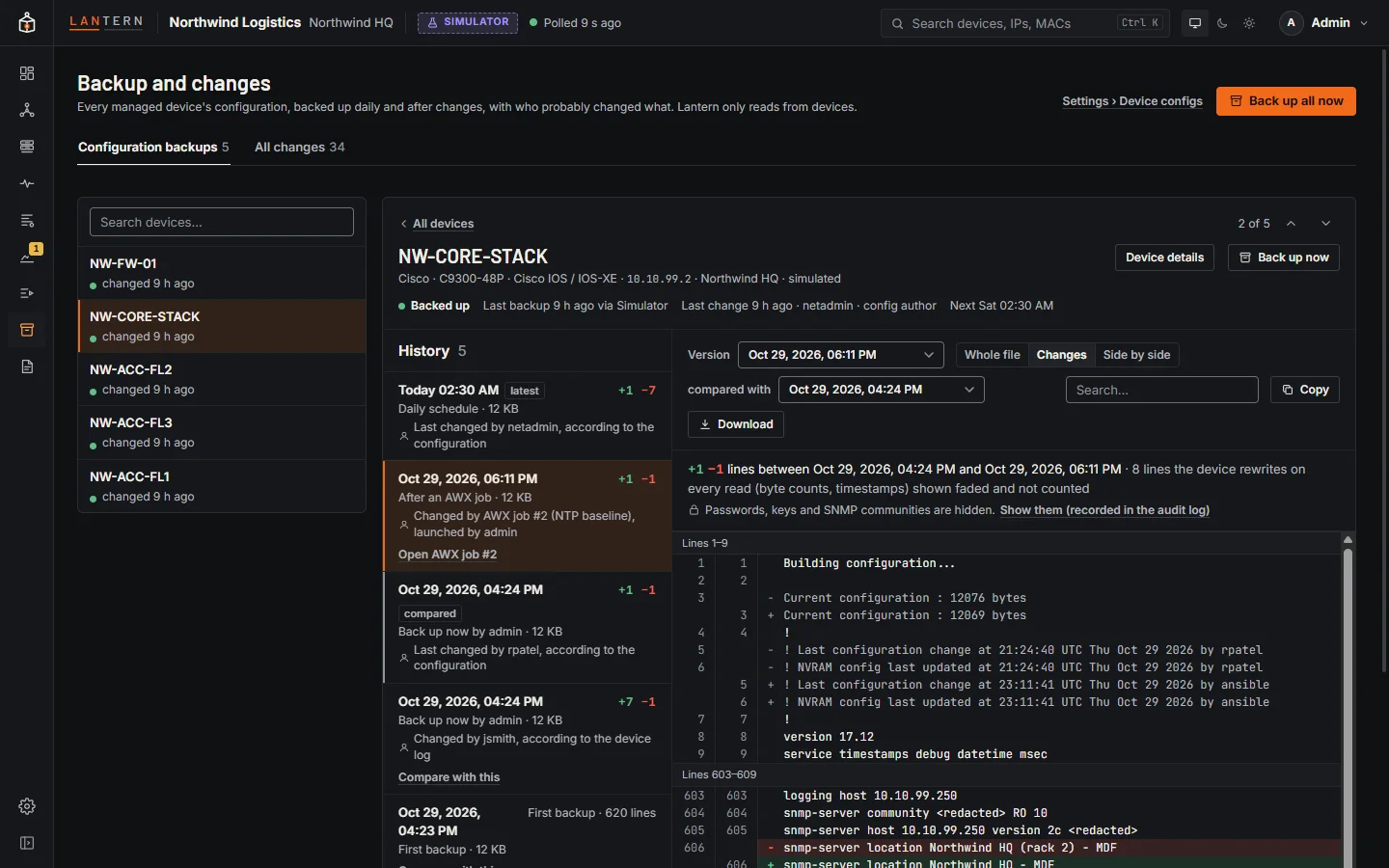
- The top shows the platform, address, status, last backup and change, the next run and the login profile, with Back up now (operators and administrators) and Device details.
- The version history lists every stored version with its time, what started the backup (Daily schedule, Back up now, Change logged by the device, After an SSH session, After an AWX job), who probably made the change, and the lines added and removed. Open the SSH session and Open AWX job go to the session or job behind a change. Compare with this picks the older version to compare against.
- The viewer opens on the latest configuration as a Whole file. Changes shows only what changed between two versions; Side by side shows them next to each other. Search, Copy and Download work in every view.
- Previous and next (or Alt+↑ and Alt+↓) step through the devices in the table's order and filters. On a wide screen the device list stays beside the history.
Lines the device rewrites on every read, such as a byte count or a timestamp, are shown faded and are not counted as changes.
Passwords and keys stay hidden
Passwords, secrets, keys and SNMP communities are masked in every view, copy and download. A change that only touched a secret shows as Passwords or keys only. Administrators can choose Show them (recorded in the audit log) to see and download the full text; every time they do is recorded with their name.
Who changed it
For each new version Lantern looks for the most likely author, in this order:
- An AWX job that ran on the device: Changed by AWX job #N (template), launched by …. After a real (not dry-run) AWX job finishes, Lantern backs up the devices it ran on straight away and credits any change to the job and the person who launched it.
- A recorded SSH session through Lantern that made changes on the device since the previous backup (at most 24 hours back): Probably changed by … in a recorded SSH session, with the device login when it differs.
- The user named in the device's own configuration-change log message: Changed by …, according to the device log.
- The author the configuration itself records (Cisco IOS and Juniper Junos): Last changed by …, according to the configuration.
These are the best evidence Lantern has, not proof. Syslog in particular can be forged by anyone on the network.
When backups run
- Daily, at a set time in a set time zone (02:30 in the appliance's time zone by default). Each device can have its own time or be skipped.
- After changes (on by default): when a device logs a configuration change over syslog, or a recorded SSH session changed it, Lantern backs it up after a quiet period (2 minutes by default), so the new version is linked to who made the change.
- Back up now, for one device (device panel or the device's history) or all (Back up all now).
- A newly found device gets its first backup shortly after it appears.
A new version is stored only when the configuration actually changed. Failed connections and timeouts are retried after 30 seconds and again after a minute; login and permission errors are not retried. Only one backup of a device runs at a time.
Setting up: Settings › Device configs
Administrators set up backups on Settings › Device configs.
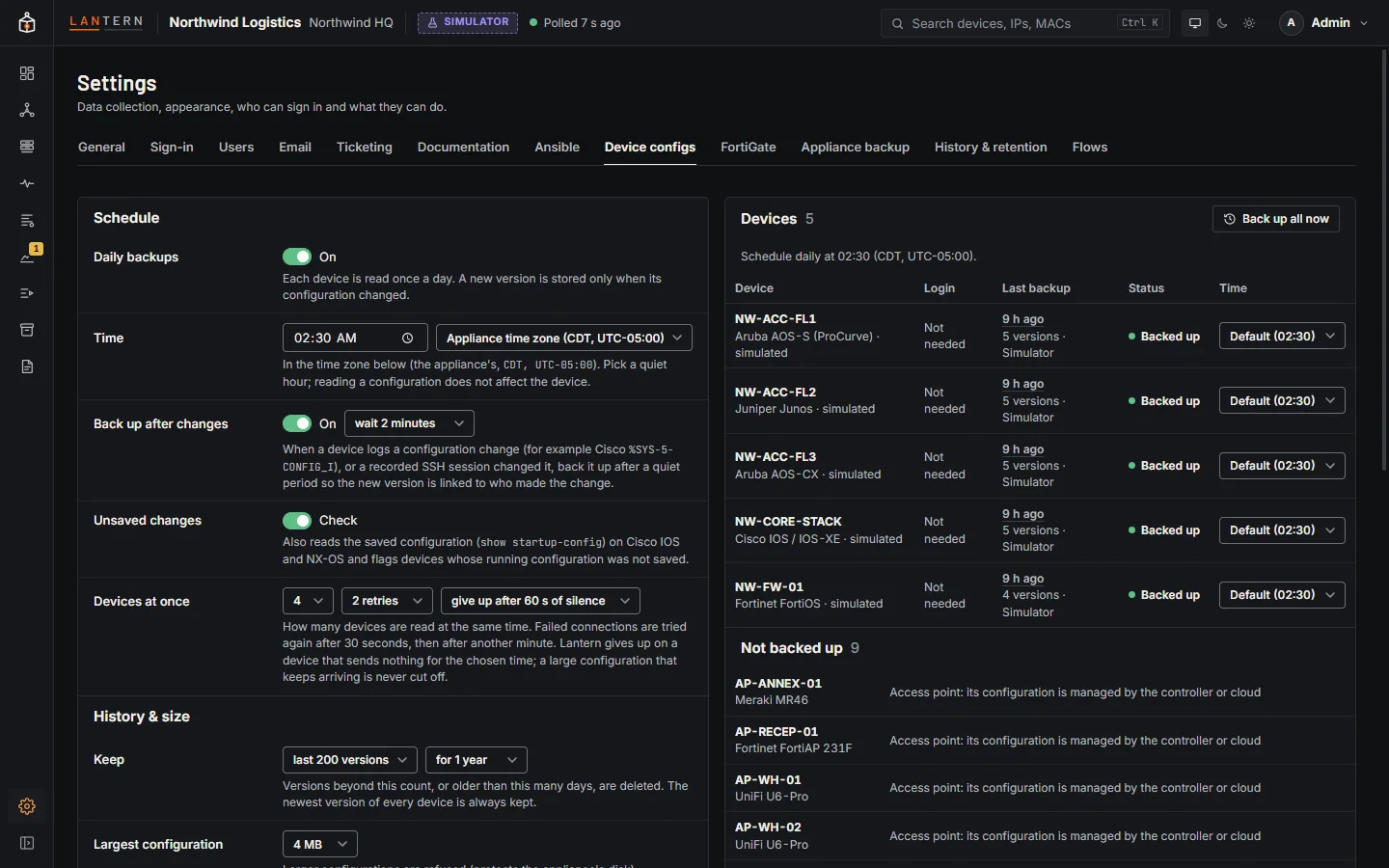
- Schedule: daily backups on or off, the time and time zone, Back up after changes with the quiet period, Unsaved changes (on by default: also read the startup configuration on Cisco IOS and NX-OS and flag devices whose running configuration was not saved), how many devices at once, retries, and how long Lantern waits for a silent device.
- History & size: how many versions to keep (200 by default) and for how long (one year by default). The newest version of every device is always kept. Configurations larger than the limit (4 MB by default) are refused.
- Login profiles: the read-only account Lantern logs in with: username, password or private key, an optional enable secret (Cisco IOS, Aruba AOS-S), and an optional FortiGate API token. Test logs in to one device and reads its configuration once, storing nothing.
- Which devices use which profile: rules by device, subnet, platform, vendor or role. A device rule wins, then the most specific subnet, then platform, vendor and role.
- New devices: see Approving host keys.
- Devices, with their status, login profile and an optional time of their own; Not backed up; What Lantern sends to devices; and the Audit log (settings and profile changes, login tests, Back up now, host-key approvals, and every time someone showed passwords or downloaded a full configuration).
Use a dedicated read-only account on each device, and prefer an SSH key to a password. Simulated devices need no profile.
Approving host keys
A device matched only by a platform, vendor or role rule could be any host that claims to be that kind of device. So the first time Lantern connects to such a device, it records the SSH host key (or the FortiGate's HTTPS certificate) and disconnects before logging in: no password, key or token is sent. The device shows Approve host key with the fingerprint in Settings › Device configs. Compare it with the device and approve it (one device, or every waiting device); the backup then runs.
Devices matched by a device or subnet rule, and an administrator's Test, trust the key the first time. Trust every first key without asking turns approval off.
After that, a changed host key or certificate stops backups with Host key changed. When you have replaced the device, use Device replaced: forget old key; the next backup trusts the key the new device shows.
What Lantern sends to devices
Over SSH, Lantern sends only the commands in a fixed list: the command that shows the configuration, a paging command that lasts for that session only, and enable where the login lands without privileges. Anything else is refused before it is sent.
| Platform | How | Commands |
|---|---|---|
| Cisco IOS and IOS-XE | SSH | enable (only when needed), terminal length 0, show running-config, and show startup-config when Unsaved changes is on |
| Cisco NX-OS | SSH | terminal length 0, show running-config, and show startup-config when Unsaved changes is on |
| Aruba AOS-S (ProCurve) | SSH | enable (only when needed), no page, show running-config |
| Aruba AOS-CX | SSH | no page, show running-config |
| HPE Comware | SSH | screen-length disable, display current-configuration |
| Juniper Junos | SSH | show configuration | display set | no-more |
| Fortinet FortiGate | HTTPS API, else SSH | A read-only API request for the configuration backup with the profile's API token; over SSH, show |
FortiOS 7.6 and later offer the configuration backup through the API only as a write request, which Lantern never sends. Those FortiGates (and any without an API token) are read over SSH, so give the profile an SSH username as well. VDOM-enabled FortiGates are read as one global configuration.
Lantern closes the connection when it is done; it does not send exit.
All changes
The All changes tab is what used to be the Changes page.
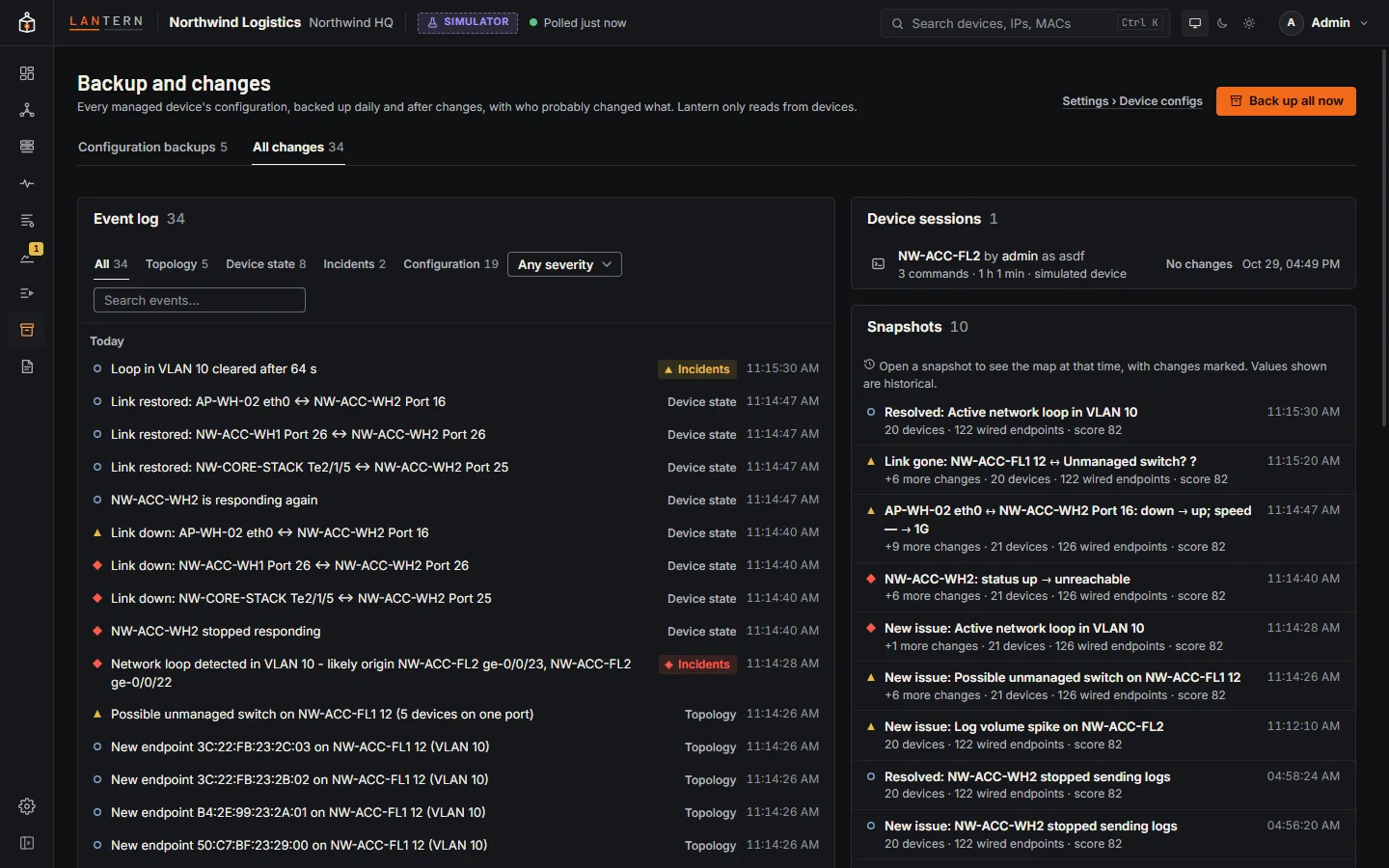
- Event log: everything Lantern has noticed, newest first: devices and links appearing or going away, new endpoints, issues opening and closing, loops detected and cleared with their duration, monitor status changes, configuration changes (Configuration of X changed (+N/−M lines), probably made …, which opens that diff) and devices whose backups started failing. Filter by category and severity, or search.
- Device sessions: SSH sessions opened through Lantern, with who opened them, the device, how long they lasted and whether configuration commands were run. Select one to see its commands and the full recording. See SSH sessions.
- Snapshots: saved points in time you can open on the map and compare. See History.
Old links to the Changes page still work: they open All changes, or the device's history for a configuration comparison.