Docs Use Lantern
Traffic flows and the heatmap
See who is using the network with NetFlow, IPFIX and sFlow, and scrub a traffic heatmap of every link through the last 24 hours.
Lantern can receive flow exports from your routers, switches and firewalls. It places every record on the links of the map, so you can see which links are busy, when they were busy, and who was using them, now or at 01:30 last night. Like everything else in Lantern, the flow collector only listens: it never sends anything to your devices.
What Lantern receives
| Protocol | Versions | Default port |
|---|---|---|
| NetFlow | v5 and v9 | UDP 2055 |
| IPFIX | UDP 2055 (shared with NetFlow) | |
| sFlow | v5 | UDP 6343 |
Lantern reads addresses, ports, protocol, interfaces, byte and packet counts and the sampling rate. It keeps per-minute totals and the busiest conversations for each link, never the raw records.
Both listeners are off until an administrator turns them on in Settings › Flows (see below).
The heatmap on the map
On the map, choose Colors › Link colors › Heatmap. Every link is coloured by its traffic, and a timeline appears under the map with the last 24 hours.
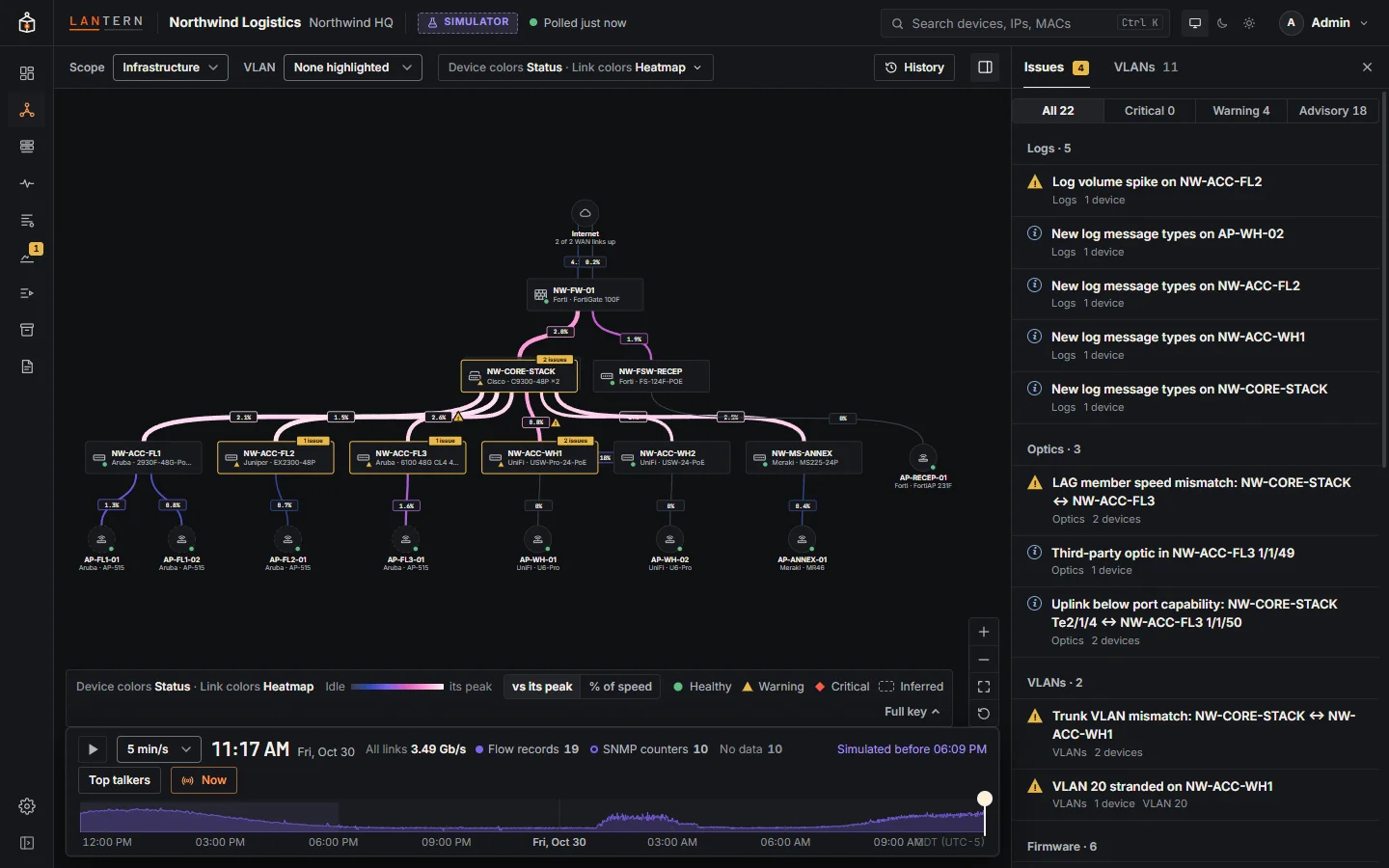
- Links with flow data are coloured from flow records. Links that no exporter reports are coloured from the SNMP traffic counters Lantern already polls, so the heatmap works even before you set up any flow export. The timeline shows how many links use each source.
- Busier links are drawn wider. A link that is down, in a loop, flooding or carrying a VLAN mismatch keeps its warning colour.
- Hover a link to see its rate, utilisation and source at the time on the timeline.
The legend has a Scale switch:
| Scale | Shows |
|---|---|
| vs its peak (default) | Each link against its own busiest minute in the period. Shows when each link is busy, even on a site where nothing gets near capacity. |
| % of speed | Utilisation of the link speed, from idle to 60% and more. Shows how full each link is. |
The timeline
- Drag along the timeline, scroll the mouse wheel (half an hour per notch), or use the keyboard: arrow keys move one minute (Shift for 15 minutes), Page Up and Page Down one hour, Home and End to the start and end.
- Play (or Space) runs through the day at the speed you choose: 1 minute, 5 minutes, 15 minutes or 1 hour per second.
- Now jumps to the newest complete minute and follows it as new data arrives.
- The strip under the timeline is the total traffic over all links. Times are in the collector's time zone.
- Top talkers opens the Flows page.
Who is using a link
With the heatmap on, click a link. The side panel shows Traffic at the time on the timeline, in both directions, with the link's Top conversations. Click a conversation to trace its path across the map: the path lights up in amber, and the panel lists every hop. Clear path removes it.
Paths follow the links on the map and the routed subnets Lantern knows about. When part of a path cannot be placed (for example an address Lantern has never seen), the panel says so.
The Flows page
The Flows page lists the busiest hosts, applications and conversations over a time range. Open it with Top talkers on the heatmap timeline, from Health › Traffic flows › Open Flows, or at #/flows.
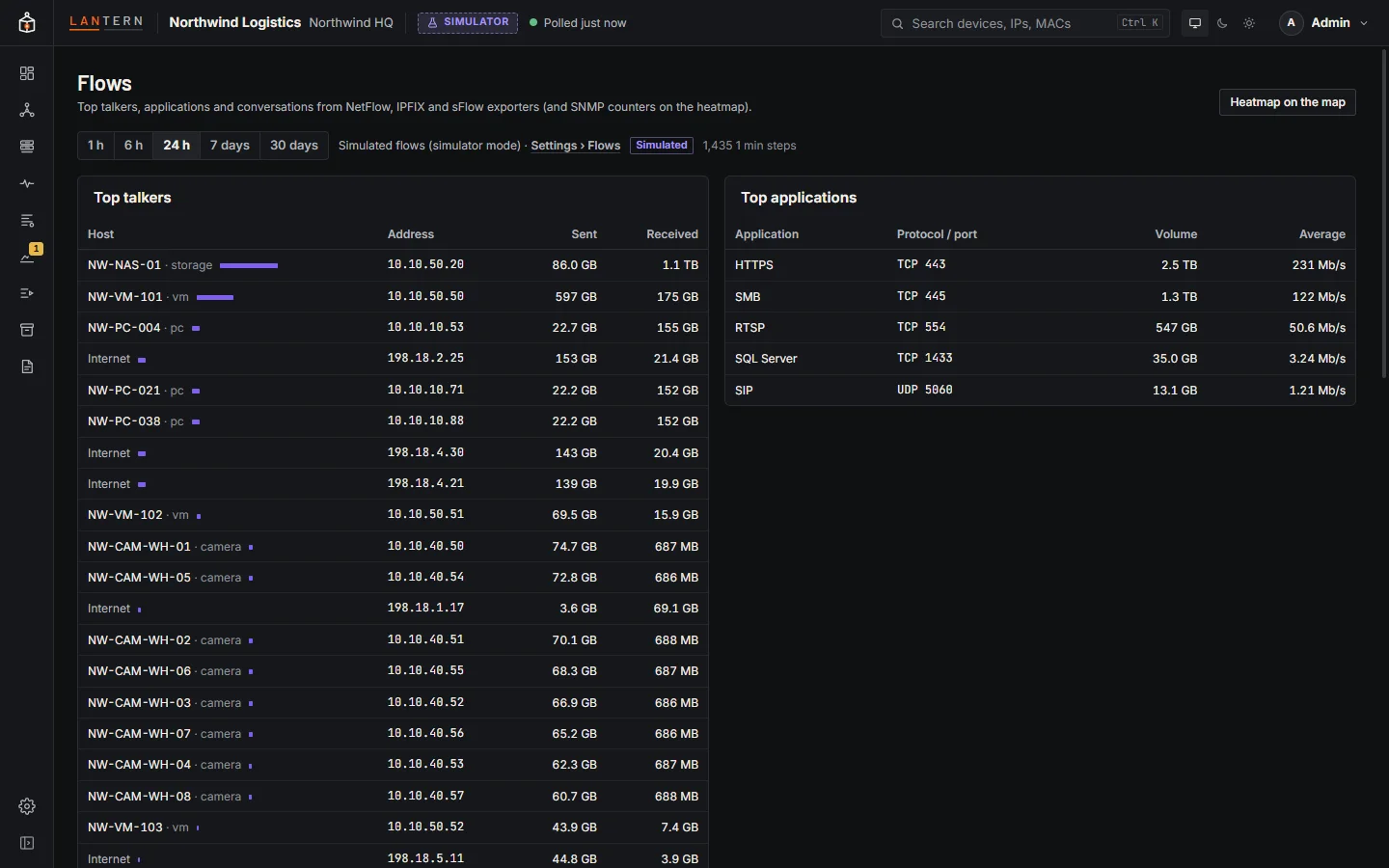
- Choose the range at the top: 1 h, 6 h, 24 h, 7 days or 30 days. The line next to it says which listeners are running.
- Top talkers: hosts with their address and the volume they sent and received.
- Top applications: protocol and port, total volume and average rate.
- Top conversations: client, server, application, volume, average rate, and how many links the conversation crossed. A conversation is counted from client to server, so both directions of one connection are a single row.
- Exporters: each device sending flows, its protocol, datagrams, records, templates, anything dropped, and when it was last heard from.
One host
Click a host (in Top talkers, or either end of a conversation) to open its page, at #/flows/host/<address>. It shows the host's address and MAC, what it sent and received, its peak rate, charts of traffic over time, and all its conversations. ‹ All hosts goes back.
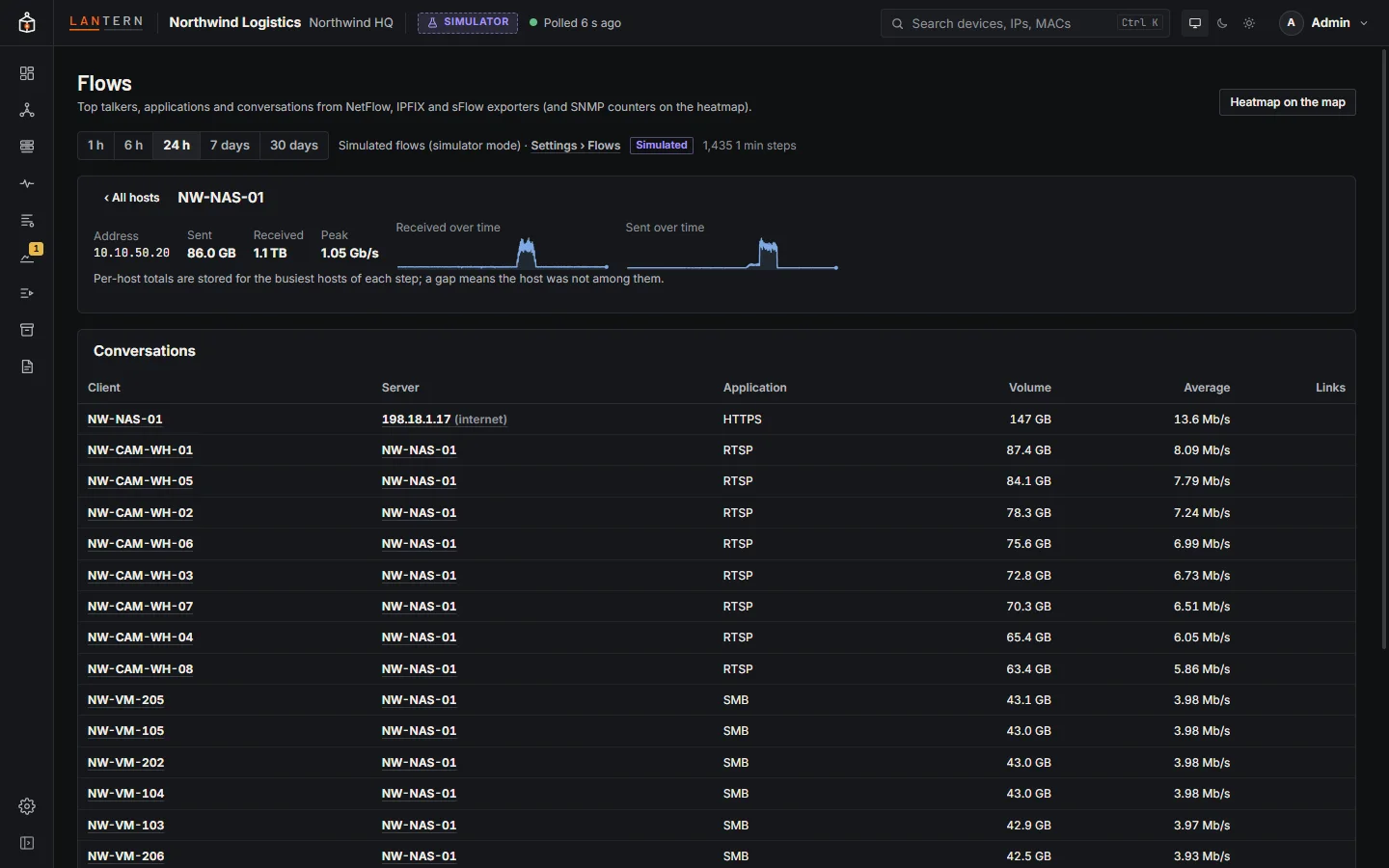
Data older than the minute-by-minute retention (24 hours by default) is shown hour by hour.
Settings › Flows
Administrators set up the collector in Settings › Flows.
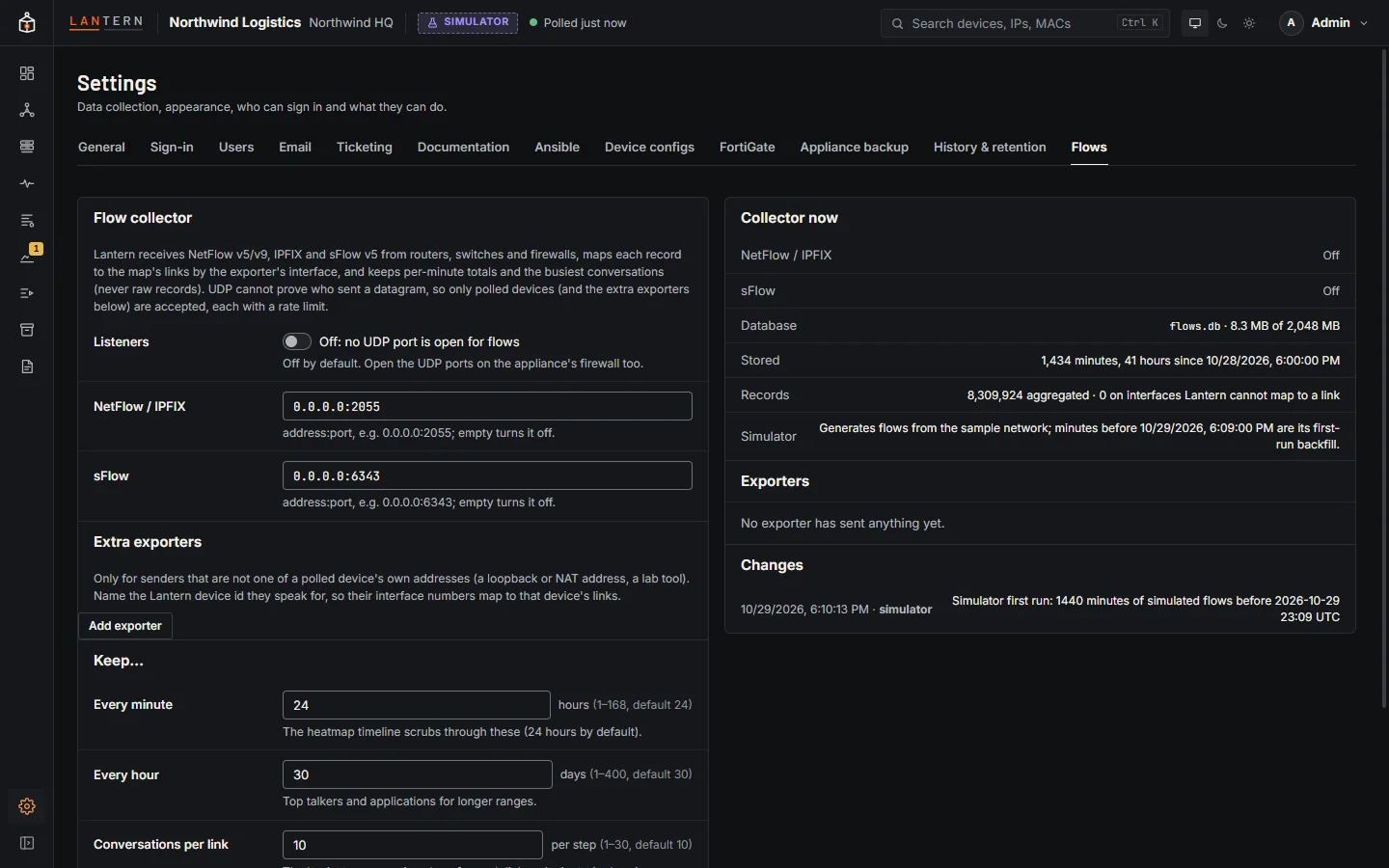
- Listeners: turn flows on, and set the NetFlow / IPFIX and sFlow addresses, such as
0.0.0.0:2055and0.0.0.0:6343. Leave an address empty to turn that listener off. Open the same UDP ports in the collector machine's firewall. If an address was set on the command line, the page says so and the field cannot change it. - Extra exporters: Lantern accepts flows only from addresses that belong to devices it polls. If a device exports from another address (a loopback or a NAT address), add that address here with the Lantern device it speaks for, so its interfaces map to the right links.
- Keep…:
| Setting | Default | Range |
|---|---|---|
| Every minute | 24 hours | 1–168 hours. The heatmap timeline scrubs through these. |
| Every hour | 30 days | 1–400 days. Used for longer ranges on the Flows page. |
| Conversations per link | 10 | 1–30, the busiest conversations kept for each link and minute. |
| Disk cap | 2,048 MB | The flow database never grows past this; the oldest minutes, then the oldest hours, are deleted first. |
The right-hand side shows the Collector now (each listener, datagrams and records received, and anything dropped and why), the database size, the Exporters heard from, and a log of Changes to these settings.
Set up your devices
Point each device's flow export at the collector's address and the port in Settings › Flows:
- Export from the interface whose address Lantern polls (usually the management interface). Otherwise add the source address under Extra exporters.
- Export on the links you want on the heatmap. Ingress on every port is enough when all your devices export; use ingress and egress when only some do.
- Set the active timeout to 60 seconds and the inactive timeout to 15 seconds. Lantern counts a record in the minute it arrives, so a long active timeout turns long transfers into spikes.
- Sampling is fine. Unsampled NetFlow suits routers and firewalls up to a few Gbit/s; use 1:100 to 1:1000 on busy switch uplinks, and sFlow at 1:1024 (1G) to 1:4096 (10G and faster). Lantern scales by the rate the device announces. Totals stay accurate on average; conversation lists from sampled data are estimates, and small conversations may be missed.
Limits in this preview
- Only addresses, ports, protocol, interfaces, counters and sampling are read: no MPLS labels, NAT translations, VLANs or application IDs. sFlow counter samples are ignored.
- Paths do not model equal-cost multipath, policy routing or VRFs.
- On a Windows collector, heatmap times can be an hour off across a daylight saving change within the 24 hours.
- In the simulator, flows are generated from the sample network and the first day is marked Simulated.