Docs Use Lantern
Email alerts
Set up the appliance's email once, then send monitor alerts, network problems and a daily summary to lists of recipients.
Lantern sends all its email through one email connector, set up once in Settings › Email (administrators). Notification channels then only need a list of recipients. Alerts cover both SNMP monitors and the network problems Lantern finds itself, such as a loop or a device that is down.
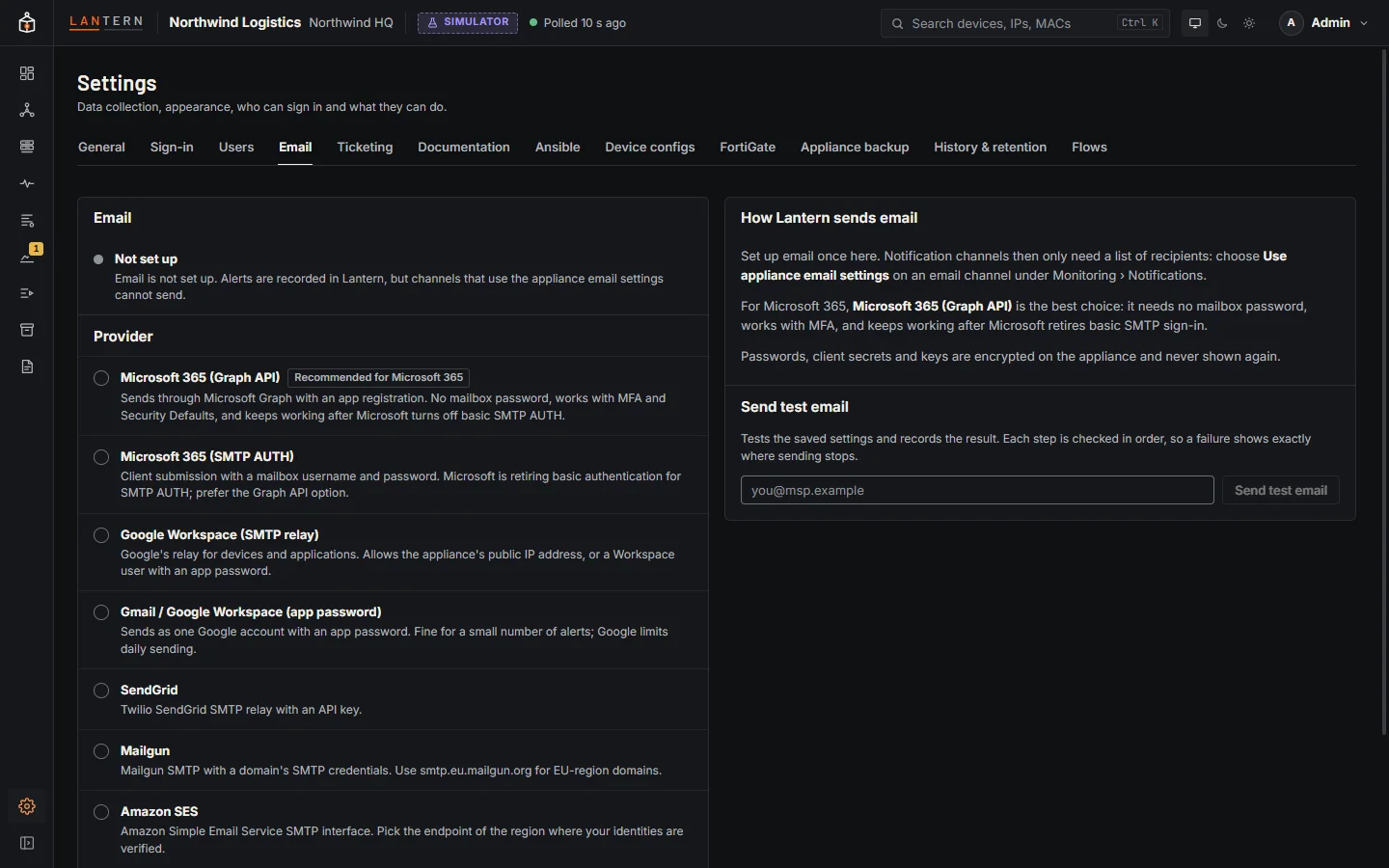
Set up email
Choose a provider. Lantern fills in the server, port, encryption and sign-in method, and shows the setup steps for that provider next to the form.
| Provider | How Lantern sends |
|---|---|
| Microsoft 365 (Graph API) (recommended for Microsoft 365) | An app registration in your tenant. No mailbox password; works with MFA and security defaults. |
| Microsoft 365 (SMTP AUTH) | smtp.office365.com, port 587, STARTTLS. Microsoft is retiring this kind of sign-in: use Graph for anything long-lived. |
| Google Workspace (SMTP relay) | smtp-relay.gmail.com, port 587. Allow the appliance's public IP in the Admin console, or use SMTP authentication. |
| Gmail / Google Workspace (app password) | smtp.gmail.com, port 587. Needs 2-Step Verification and an app password; Google limits daily sending. |
| SendGrid, Mailgun, Amazon SES | Their SMTP endpoints with the SMTP credentials from each service. |
| Other SMTP server | Any host and port, STARTTLS, TLS or no encryption, and no sign-in, PLAIN or LOGIN. |
Fill in the From address (the mailbox Lantern sends as), and optionally a From name and Reply-to, then Save changes.
Microsoft 365 with Graph
- In the Microsoft Entra admin center, register an app (for example Lantern alerts, single tenant, no redirect URI). Copy its Application (client) ID and Directory (tenant) ID.
- Add a client secret (copy its value) or upload a certificate and paste the certificate and its private key into Lantern. Note when it expires: mail stops on that date.
- Allow the app to send only as the alert mailbox, using RBAC for Applications in Exchange Online (the steps are shown next to the form). Do not also grant tenant-wide Mail.Send with admin consent: that lets the app send as every mailbox.
- Use a licensed or shared mailbox as the sender. Send as mailbox can name a different mailbox than the From address.
Rules Lantern enforces
- Server certificates are always checked; there is no option to skip that. For a server with an internal certificate authority, paste the CA certificate under Custom CA.
- No encryption is allowed only to a relay on a private network (10.x, 172.16–31.x, 192.168.x), and never with a password. It is meant for an on-premises relay that allows the appliance by IP address.
- Passwords, client secrets and private keys are encrypted on the appliance and never shown again. Leave the field empty to keep the saved one. If you change the server, port, account, tenant or application, type the secret again: Lantern only sends it to the server it was saved for.
- Turn off email deletes the saved secrets.
Send test email
Send test email tests the values in the form, saved or not, and reports each step: finding and connecting to the server, the encryption handshake (with the certificate's details), signing in, and each recipient. For Graph, it checks the sign-in token and whether the app may send mail. A failure stops at the step that failed and says what to do, for example when SMTP sign-in is turned off for the tenant, Google needs an app password, or the account may not send as the From address. The last test result is shown at the top of the tab.
Email channels
Under Monitoring › Notifications, an Email channel is a list of recipients that sends with Use appliance email settings (the default for new channels). Channels that you saved with their own SMTP server before the connector existed keep working; untick the box to edit them.
- Recipients: up to 50 addresses, separated by commas. A distribution list counts as one.
- Default for network alerts: rules that don't name their own channels send here. This works for any channel type, not only email.
- Daily summary of open alerts and the last 24 hours (off by default): sent at the hour and time zone you choose. Send summary now sends one straight away.
Pick the channel in a monitor's notification settings, in a network alert rule, or both.
Network alerts
Problems Lantern finds on the network (devices down, loops, stack members down, stranded VLANs, unmanaged switches, optic and interface faults) open alerts too. They appear under Monitoring › Alerts › Network problems, where operators can acknowledge them.
Network alert rules (Monitoring › Notifications, administrators) choose the severities, categories, devices and channels, reminders while unacknowledged, a wait before the first notification, a minimum time between notifications, and a schedule. The first rule is created for you: critical and warning problems, every category, to the default channels, with recovery notices. Advisories never notify unless a rule includes them.
The same noise control as for monitors applies:
- One problem is one alert, even if it flaps: it resolves only after it has been gone for a minute.
- Acknowledge (with a note) stops reminders; getting worse notifies again.
- Maintenance windows that name devices hold network alerts for those devices.
- A restart of Lantern does not send a false "resolved" followed by a new alert.
What the email looks like
The subject says the severity and what happened, for example [Lantern] CRITICAL: Active network loop in VLAN 10 on NW-ACC-FL2 (Northwind Logistics). Reminders say STILL CRITICAL, and the recovery says RESOLVED.
The body has what happened, the recommended action, the site, devices and ports, when it started, its status (including who acknowledged it), the evidence, and an Open and acknowledge button. The links use the Public address from Settings › Sign-in; without one, the email says so and has no links. The email works in light and dark mode and without images.
The problem, its reminders and its recovery thread as one conversation in your mail client. Out-of-office replies are suppressed.
Delivery
- Failed deliveries are retried after 30 seconds, then 1, 2, 4 and 8 minutes, then shown as failed in Monitoring › Notifications › Delivery log. Alert emails that failed in the last 24 hours (for example while email was not set up) are sent again when you save Settings › Email or a test of the saved settings succeeds.
- If the mail server refuses some recipients, the others still get the email and the delivery log lists each refused address. Temporary refusals are retried for those addresses only.
- Storm control: each channel sends at most one alert email a minute. Alerts that arrive together go out as one email (N alerts at the same time), so 30 problems at once become one or two emails, not 30. Tests and summaries are never grouped.
- A slow mail server never holds up webhook or ticket notifications.