Docs Use Lantern
PSA ticketing
Open and update tickets in Autotask, HaloPSA or ConnectWise PSA when a monitor or a network problem alerts.
Lantern can open a ticket in your PSA when an alert fires, add notes while the problem lasts, and note the recovery. It works with Autotask, HaloPSA and ConnectWise PSA (Manage).
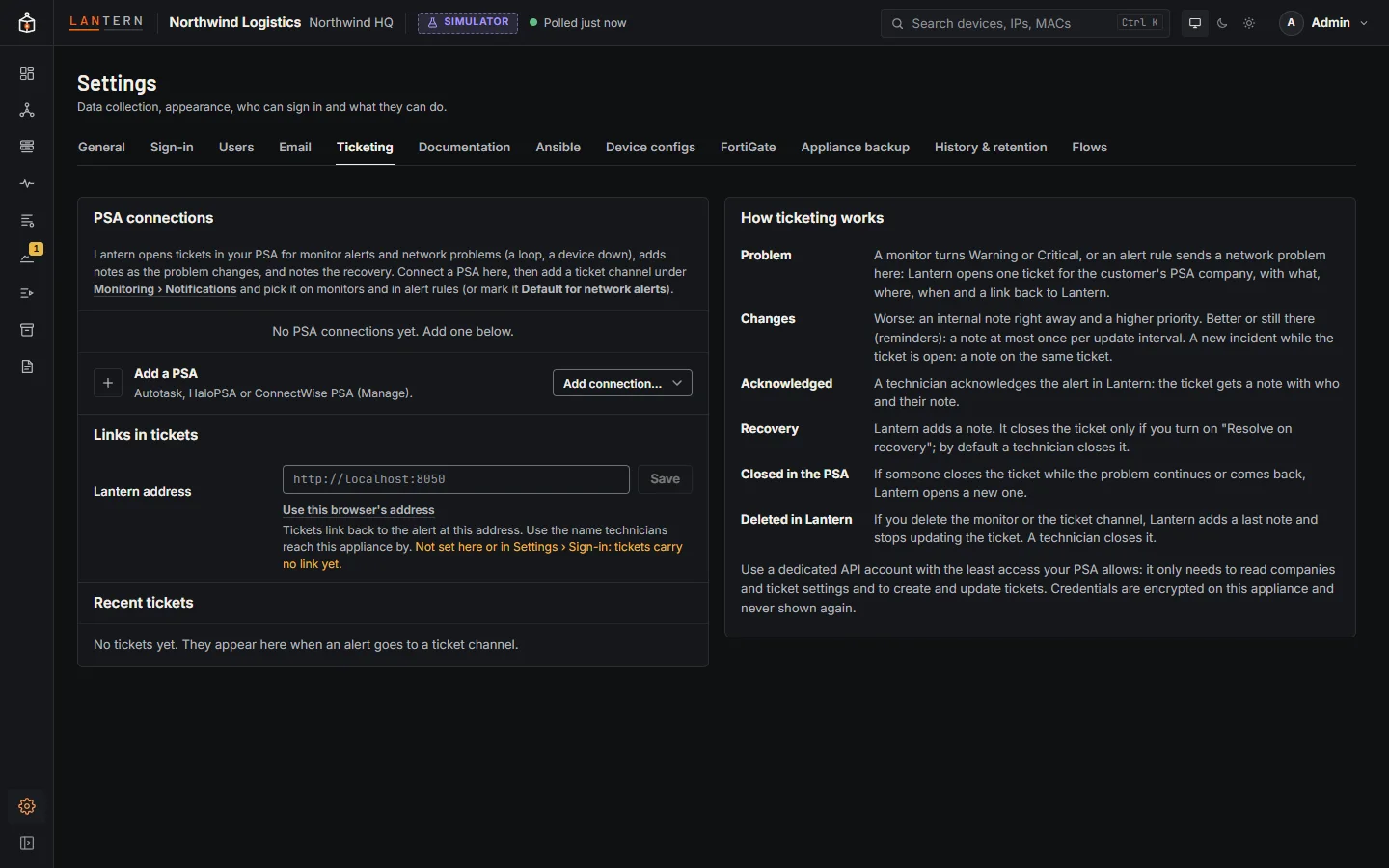
How it fits together
- Settings › Ticketing (administrators): add a PSA connection, test it, choose the PSA company this customer maps to, and pick the ticket defaults from lists read from your PSA.
- Monitoring › Notifications (administrators): add a channel of type Autotask ticket, HaloPSA ticket or ConnectWise PSA ticket that uses the connection. A channel can use its own queue or board and a fixed priority.
- Pick the channel on monitors, like an email or webhook channel, and in network alert rules, or mark it Default for network alerts. Turn on Recovery notifications on those monitors, otherwise the ticket never hears that the problem went away.
Add a connection
Use a dedicated API account with the least access your PSA allows: it only needs to read companies and ticket settings, and to create and update tickets. Credentials are encrypted on the appliance and never shown again.
Autotask
- Create an API User under Admin › Resources (Users). An API-only user cannot sign in to the web interface.
- Give it a security level that allows only: companies (view), contracts (view, optional), service desk tickets (view, add, edit) and ticket notes (add).
- Set the API Tracking Identifier to Custom (Lantern) and generate the secret.
- In Lantern, enter the API username, the tracking identifier and the secret. Lantern finds your Autotask zone itself.
HaloPSA
- Under Configuration › Integrations › Halo API › Applications, add an application using Client ID and Secret (Services), login type Agent, and a dedicated agent whose access covers the customers' tickets.
- Give it read and edit access to tickets and read access to customers.
- In Lantern, enter the Resource server and Authorisation server shown under API details, the Tenant (hosted Halo only), the Client ID and the client secret.
ConnectWise PSA
- Create a security role that allows inquiring on companies, adding, editing and inquiring on service tickets and their notes, and optionally inquiring on agreements.
- Add an API member with that role, a default board, and a territory that covers the customers. Generate its public and private keys.
- Get a client ID from the ConnectWise developer site.
- In Lantern, enter the Site (for example
api-na.myconnectwise.net), the Company ID you sign in with, the Public key, the private key and the Client ID.
Test connection signs in with the values in the form, saved or not, and reads something harmless; nothing is created. If you change a connection's address, type the credentials again: Lantern never sends saved credentials to a new address.
Customer and ticket defaults
Choose the PSA company for this appliance's customer, then the defaults for new tickets: queue or board, Status for new tickets, Priority for each severity, ticket type and, where your PSA has them, subtype, source, category, issue and sub-issue type, contract and Due time. With ConnectWise, choose the board first: statuses and types belong to a board.
Under updates and recovery:
| Setting | Meaning |
|---|---|
| Update notes | At most one reminder or "less severe" note per ticket in this interval (default 60 minutes). |
| Note visibility | Notes are internal by default; you can make them visible to the customer. |
| Priority when it gets worse | Raise the priority to match the new severity, or keep it. |
| Resolve on recovery | Off by default: Lantern adds a note and a technician closes the ticket. On, Lantern also sets the Resolved status. |
Create test ticket opens a real ticket titled Lantern test ticket (please ignore) for the chosen company, adds a note, and closes it when a resolved status is set (otherwise close it by hand). Send test on a ticket channel only checks the connection.
Links in tickets: tickets link back to the alert in Lantern using the Lantern address set here, or else the public address from Settings › Sign-in. With neither, tickets carry no link.
What happens to a ticket
There is one live ticket per problem and channel.
| In Lantern | In your PSA |
|---|---|
| A monitor turns Warning, Critical or Unknown, or a rule sends a network problem | A ticket opens for the customer's company, with what, where, when, the severity, the evidence and a link back to Lantern |
| It gets worse | An internal note right away, and a higher priority (unless you keep it) |
| It gets better, or a reminder is due | A note, at most once per update interval |
| Someone acknowledges the alert | A note with who acknowledged it and their note |
| It recovers | A "recovered" note; the ticket is closed only with Resolve on recovery |
| It comes back while the ticket is open | A note on the same ticket |
| The ticket was closed in the PSA while the problem continues or comes back | A new ticket |
| The monitor or ticket channel is deleted | A last note; Lantern stops updating the ticket and a technician closes it |
Ticket titles start with Lantern:, for example Lantern: CPU load on NW-CORE-1. The severity is not in the title because it can change; it sets the priority and is in the description. Retries never create a duplicate ticket.
Ticket links appear on Monitoring › Alerts (the Ticket column), on the monitor's page, and under Recent tickets in Settings › Ticketing. Everyone can see ticket links; only administrators see connections. Finished tickets are kept in Lantern's ticketing log for 400 days.