Docs Use Lantern
Graph history
Graph any port or device over time without creating a monitor first, and choose how long history is kept.
Lantern records every value it polls as history, so you can graph any port or device without setting anything up: traffic, errors, discards, broadcasts, link state and speed, spanning tree, PoE, optic power, MAC addresses learned, CPU, memory, temperature, PoE budget, wireless clients per access point, stack members and LAGs. Nothing is configured and no extra load is put on devices: the values come from the polls Lantern already makes.
Where to find graphs
- Device panel › Graphs: the device's health first (responding, stack members, CPU and memory, temperature, PoE used against the budget, LAG members with link, wireless clients for access points, MAC, ARP and DHCP counts). Then pick a port (from the list, or click it on the front panel) for its link state and spanning tree, traffic, errors and discards, broadcasts, PoE draw, optic power with the receive warning and critical levels, optic temperature and MACs learned. The graph button on each row of the Ports tab opens that port's graphs too.
- A link on the map: select it, and its History section shows the link's utilisation in both directions as a percentage of its speed, and the errors received at each end. For a LAG, pick a member.
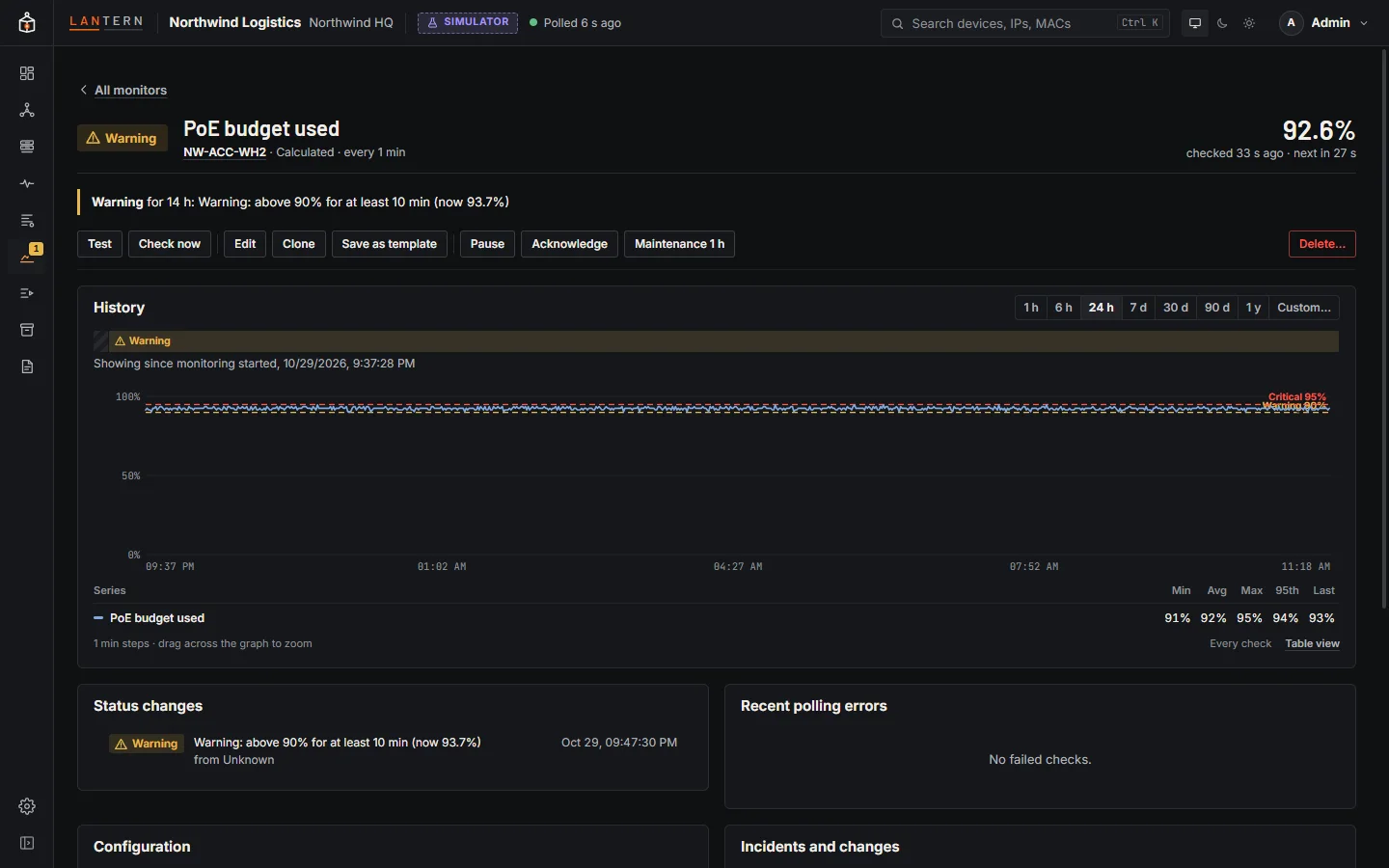
- Monitoring › a monitor › History: the monitor's own samples, with its Warning and Critical lines and failed checks marked. See Monitoring.
- Sparklines: the device panel's Monitor › Monitors list shows the last 24 hours for each numeric monitor, and Live values shows the recorded history of the values Lantern keeps.
Read a graph
- Range: 1 h, 6 h, 24 h, 7 d, 30 d, 90 d, 1 y, or Custom… for exact dates. The choice is remembered for each kind of graph in this browser.
- Zoom: drag across the graph. Back steps out, Reset zoom returns to the range.
- Hover for the exact value and time. Over longer ranges each point covers several readings, and the shaded band shows their minimum and maximum.
- The table under the graph gives the minimum, average, maximum, 95th percentile and last value for the range. Click a row to hide or show that line.
- Traffic is drawn mirrored: received above the axis, sent below it.
- Link state, responding, spanning tree and stack members are drawn as labelled strips, not lines.
- Table view shows the same numbers as a table, and Download CSV exports them.
- The graph is keyboard friendly: focus it, then use the arrow keys to move along it (Shift for bigger steps), + and - to zoom and Escape to clear.
A time with no reading is a gap in the line, never a zero. A device that was polled but did not answer is recorded as Not responding, which is a real value.
Simulated history
With the simulator, Lantern fills in a day of one-minute history, a week of five-minute history and 30 days of hourly history the first time it starts, so the graphs have something to show. That part is shaded Simulated history in every graph and marked in the CSV. Live collectors never make up history.
History and retention
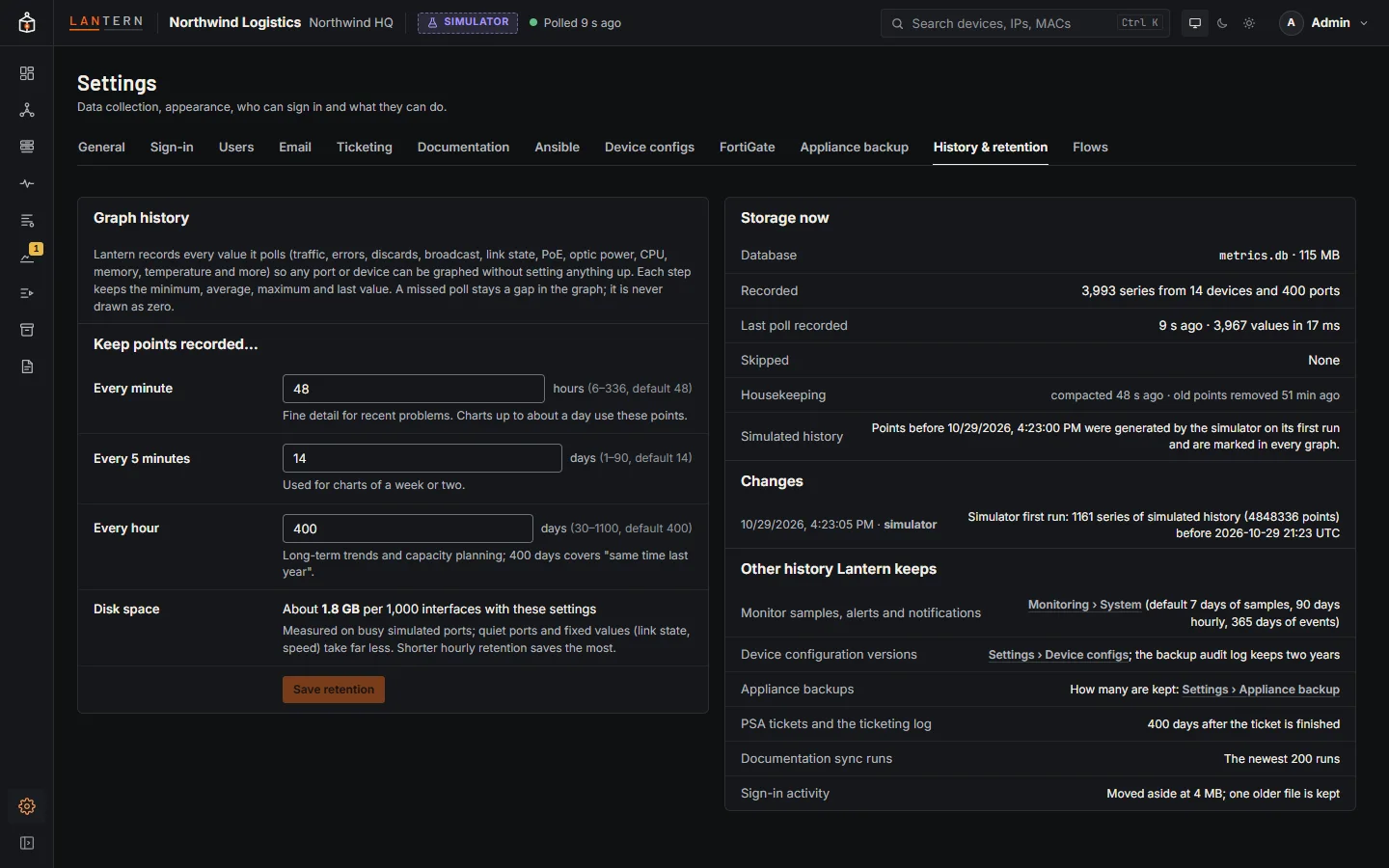
Settings › History & retention (administrators change it, everyone can see it) sets how long each level of detail is kept.
| Detail | Default | You can choose | Used for |
|---|---|---|---|
| Every minute | 48 hours | 6 hours to 14 days | Fine detail for recent problems; graphs up to about a day |
| Every 5 minutes | 14 days | 1 to 90 days | Graphs of a week or two |
| Every hour | 400 days | 30 to 1,100 days | Long-term trends and capacity planning; 400 days covers "same time last year" |
Coarser detail must be kept at least as long as finer detail. The tab shows an estimate of the disk space your choice needs and the real size of the database: with the defaults, plan for about 1.8 GB per 1,000 interfaces, most of it the hourly history. Shortening the hourly retention saves the most.
Saving a shorter retention first asks Delete older history? and lists, per level, the dates that will be deleted. Delete and save deletes them at once and they cannot be brought back; Keep current retention cancels.
The tab also shows the last poll recorded, any skipped polls, housekeeping, and who changed retention and when. Other history Lantern keeps lists where the rest is set, for example monitor samples under Monitoring › System.
Graph history is kept in metrics.db in the data folder. If Lantern is stopped normally it saves the current minute first; after a crash, at most the last minute is lost.