Docs Reference
Connect Lantern to AWX
Settings › Ansible: the AWX address, token, certificate pin and organization, the Lantern inventory, and the read-only inventory token.
Lantern's Automation page works through your own AWX (or the automation controller of Red Hat Ansible Automation Platform). This page covers setting that up. Only administrators see Settings › Ansible.
Prepare AWX
- In AWX, create an organization for this site (or use an existing one) and a dedicated user for Lantern, such as
lantern-<customer>. Do not use an AWX superuser: Lantern warns you if you do. - Give that user roles in that organization only:
- Execute on the job templates operators should launch, and Inventory Admin so Lantern can create and sync its inventory.
- Project Admin, Credential Admin and Job Template Admin if administrators should manage those from Lantern. If another team runs AWX, Inventory Admin and Execute are enough: the other tabs then show AWX's refusal.
- Create a token for the user: in AWX, Users › the user › Tokens › Add, with scope Write (launching jobs and syncing are writes).
Connect
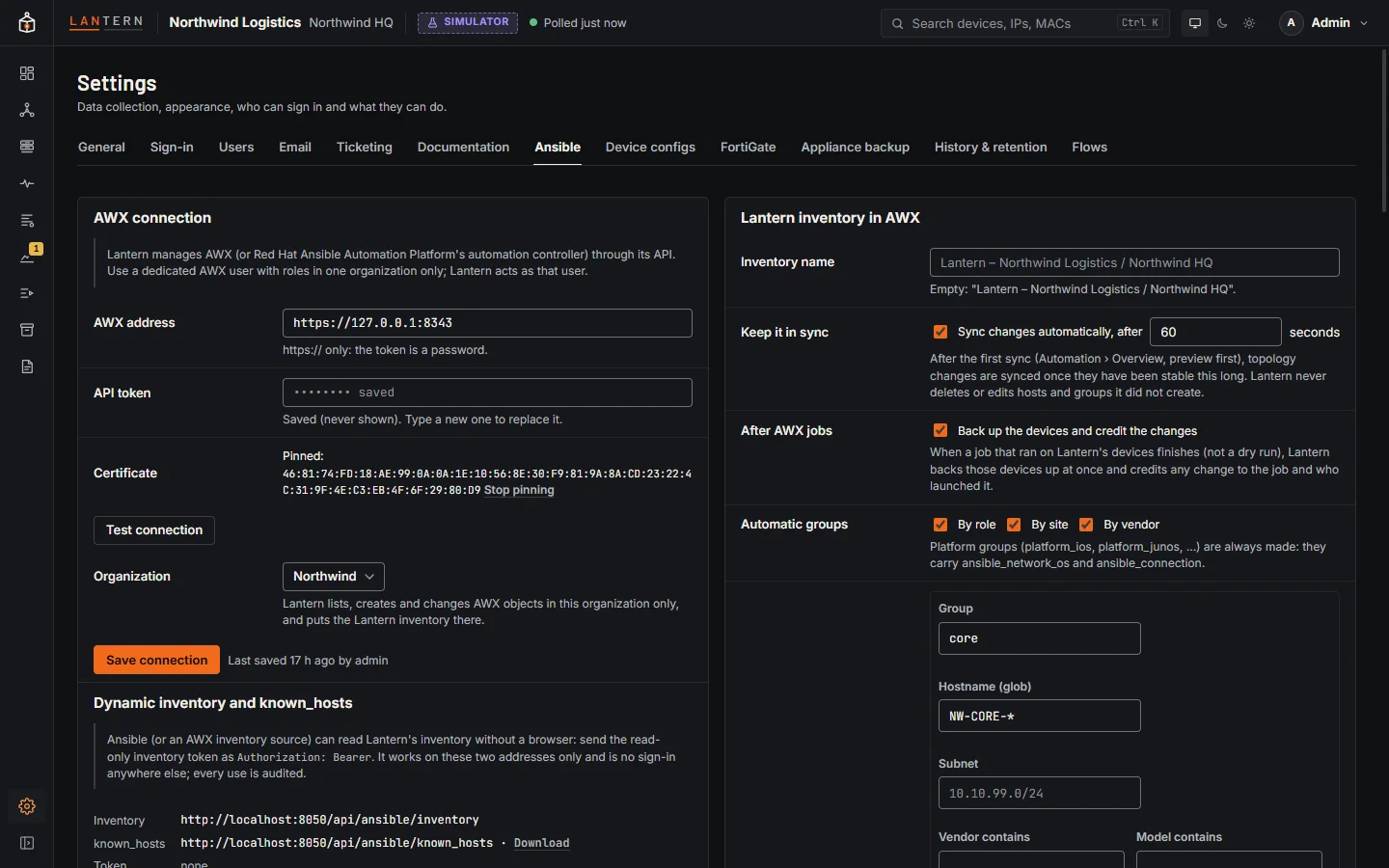
In Settings › Ansible › AWX connection:
- AWX address:
https://.... AWX must use HTTPS, because the token is a password. - API token: the token from AWX. It is stored encrypted on the collector, never shown again, and only ever sent to this address. If you change the address, the token is dropped and you enter it again.
- Test connection. Lantern shows the AWX version and the user it connected as.
- If AWX has a self-signed certificate, Lantern shows its SHA-256 fingerprint. Compare it with the certificate itself (for example in a browser on a trusted machine) and tick the box to pin it. Lantern then accepts only that certificate. Stop pinning removes the pin.
- Choose the Organization. Lantern lists, creates and changes AWX objects in this organization only, and puts its inventory there.
- Save connection.
Then go to Automation › Overview, choose Preview to see what Lantern will create in AWX, and Sync now once.
The Lantern inventory
In Lantern inventory in AWX:
- Inventory name: empty uses Lantern – customer / site.
- Keep it in sync: after the first sync, sync topology changes on their own once they have been stable for the number of seconds you choose (60 by default).
- After AWX jobs: after a real run on Lantern's devices, back them up at once and credit any configuration change to the job and the person who launched it.
- Automatic groups: platform groups (
platform_ios,platform_junosand so on) are always made, because they carry the connection settings Ansible needs for each platform. Groups By role, By site and By vendor can each be turned off. - Grouping rules: a group name and conditions (hostname pattern, subnet, vendor or model contains, role, platform). A device joins the group when every condition you fill in matches. Add a rule for each group.
- Devices: untick a device to leave it out of the inventory. Meraki, UniFi and devices without an Ansible network platform are always left out.
- Groups now shows the groups the inventory will have.
Save inventory settings, then Preview changes in AWX to check them.
Lantern only changes or deletes hosts and groups it created. A host or group with the same name that someone else made in AWX is reported as a conflict and left alone, and variables added in AWX are kept.
Dynamic inventory and known_hosts
Ansible on a laptop, a CI job, or an AWX inventory source can read Lantern's inventory without a browser:
| Address | Returns |
|---|---|
/api/ansible/inventory |
The same inventory in Ansible's dynamic-inventory JSON. |
/api/ansible/known_hosts |
An OpenSSH known_hosts file of the device host keys Lantern trusts, from configuration backups and SSH sessions. |
Both need the read-only inventory token. Create token makes it; copy it straight away, because Lantern keeps only a hash. Rotate token replaces it (anything using the old one stops working) and Revoke removes it. Send it as a bearer token:
curl -H "Authorization: Bearer lnt_inv_..." https://lantern.example.com/api/ansible/inventory
curl -H "Authorization: Bearer lnt_inv_..." -o known_hosts https://lantern.example.com/api/ansible/known_hostsThe token works on these two addresses only and is not a sign-in anywhere else. Every use is recorded. Download next to known_hosts saves the file from your browser.
A device whose host keys disagree between backups and SSH sessions is left out of known_hosts, with a comment. In the simulator, known_hosts is empty.
Audit log
The Audit log at the bottom records changes to these settings, syncs, launches and uses of the inventory token.
Security notes
- Saving the AWX connection or credentials, creating the inventory token, and launching a real run ask for your password again if you last signed in more than 15 minutes ago.
- Lantern never puts device credentials in the inventory. Keep them in AWX credentials or Ansible Vault.
- AWX's own error messages are shown to administrators only.
See Security for the rest.