Docs Use Lantern
Log insights
Spot unusual syslog from your devices: volume spikes, new message types, login failures, flapping, topology and configuration changes, and devices that go quiet.
Log insights watches the syslog your devices already send to Lantern and points out what is unusual: a switch that suddenly logs fifty times more than normal, someone guessing passwords on the core, an access switch that stopped logging. Each device's usual pattern is learned on its own, so a chatty device and a quiet one are each judged against themselves.
It is an operations aid, not a log archive. Lantern keeps counts, message types and a few sample lines, not every message. If you need to search months of logs or keep them for compliance, send your syslog to a log server or SIEM as well.
What you need
Send your devices' syslog to the collector (UDP 514 by default; see Configure the collector). Lines from addresses that do not belong to a polled device are ignored. Devices that Lantern reads through a controller or an API, such as Meraki, UniFi and FortiGate, can have their logs relayed by that collector too.
The Logs page
Open Logs in the navigation. The band at the top shows open Warnings and Advisories, how many devices are logging (and how many are still learning), and how many messages have been analysed.
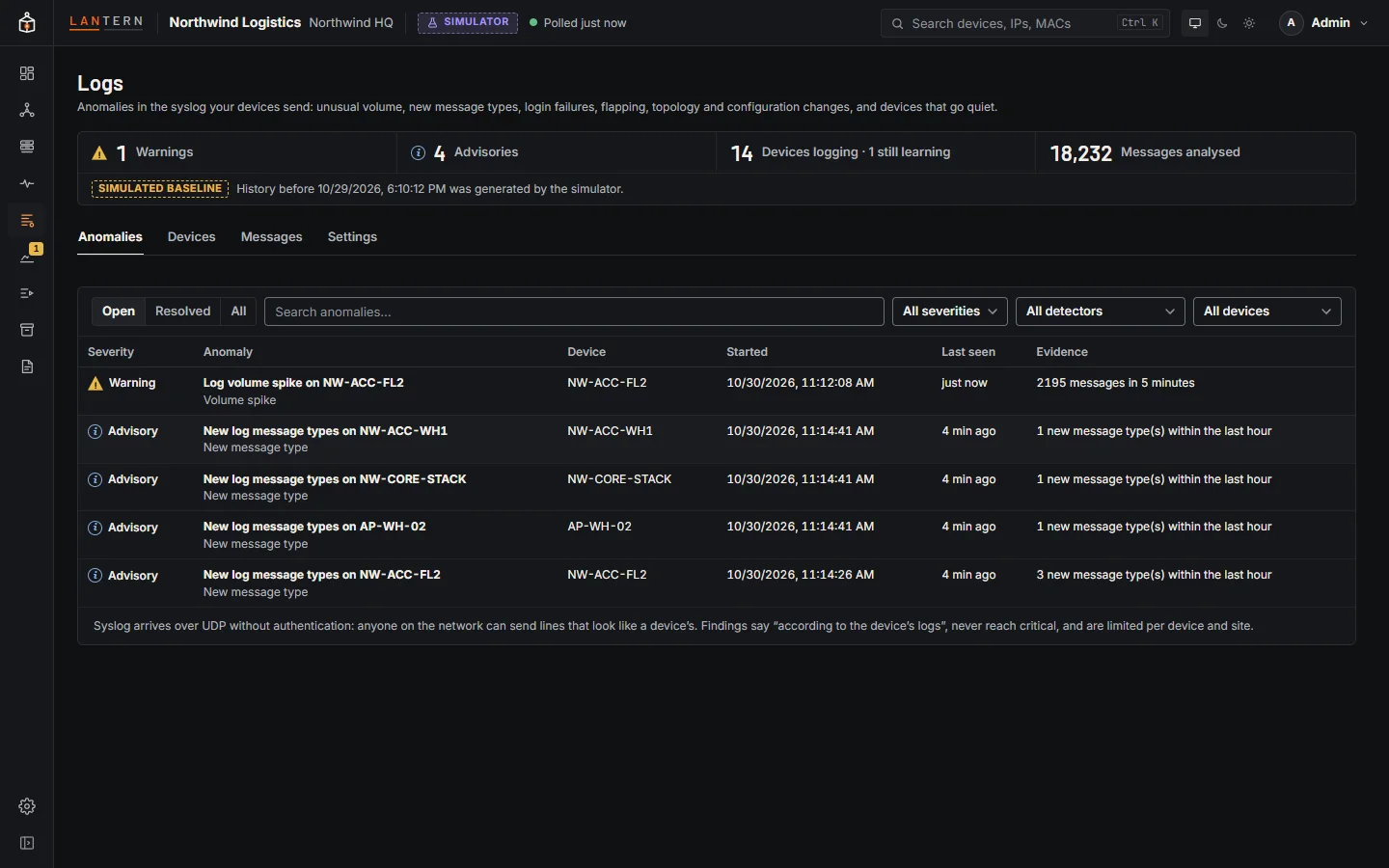
| Tab | What it shows |
|---|---|
| Anomalies | What is unusual now (Open), what has ended (Resolved), or All. Filter by severity, detector or device, or search. |
| Devices | Every device that logs: messages per minute over the last 24 hours, what is usual for it, how many message types it sends, its last message and its anomalies. |
| Messages | The newest 2,000 lines from polled devices, filtered by device, syslog severity or text, with Pause to stop it scrolling. Operators and administrators only. |
| Settings | Sensitivity, thresholds and which detectors run. Everyone can read them; administrators change them. |
An anomaly
Open an anomaly to see What the logs show: when it started and was last seen, how long it has lasted, and the observed count against the usual one. Below that are its Evidence, a Message rate chart (the dashed line is the learned baseline), the Message types involved and, for operators and administrators, Sample messages. Show device selects the device on the map, and Device logs opens its log statistics.
A device
A device's page has its message rate against its usual rate, its Open anomalies, its Most frequent message types, message types First seen in the last 7 days, and a sample of each frequent type.
What Lantern looks for
| Anomaly | Raised when | Severity |
|---|---|---|
| Volume spike | The last 5 minutes hold far more messages than usual for this device at this time (5 times as many at normal sensitivity, and at least 50). | Warning |
| Volume drop | 30 minutes well below the usual count, but not silent. | Advisory |
| New message type | The device logs a kind of message it has never sent before. | Advisory |
| Login failures | 10 failed logins in 5 minutes: SSH, console, web, RADIUS or TACACS+ rejections, or SNMP authentication failures. The evidence counts the accounts and source addresses. | Warning |
| Interface flapping | One port goes up and down 6 times in 10 minutes. | Warning |
| Topology changes | 10 spanning-tree topology changes in 10 minutes. | Warning |
| Configuration change | A configuration change outside a maintenance window that names the device, or with no SSH session open to it through Lantern. | Advisory; warning when both |
| Log silence | A device that normally logs stops (for 15 minutes by default) while it still answers polls. | Advisory |
| Severe messages | 10 emergency, alert or critical messages in 10 minutes, and at least five times the device's usual. | Warning |
A device that stops answering polls is already reported as down, so log silence only covers devices that are still up.
The learning period
Volume spike, volume drop, new message type and log silence wait until Lantern has learned a device's usual pattern: 3 days by default, counted from the device's first message. Lantern learns the usual rate per hour of the day and per hour of the week, so a device that is busy every weekday morning is not flagged for it once it has a week of history. A single storm is not learned as normal.
Where anomalies show up
Anomalies become issues in the Logs category, so they appear in Health, on the Dashboard and in the map's hover cards, with a Log evidence button that opens the anomaly. They reach your notification channels through the network alert rules like any other issue: by default warnings are sent, and advisories only through a rule that includes them. See Email alerts and Ticketing.
Alert email, webhooks and tickets carry counts only, never the message text.
The device's Logs tab
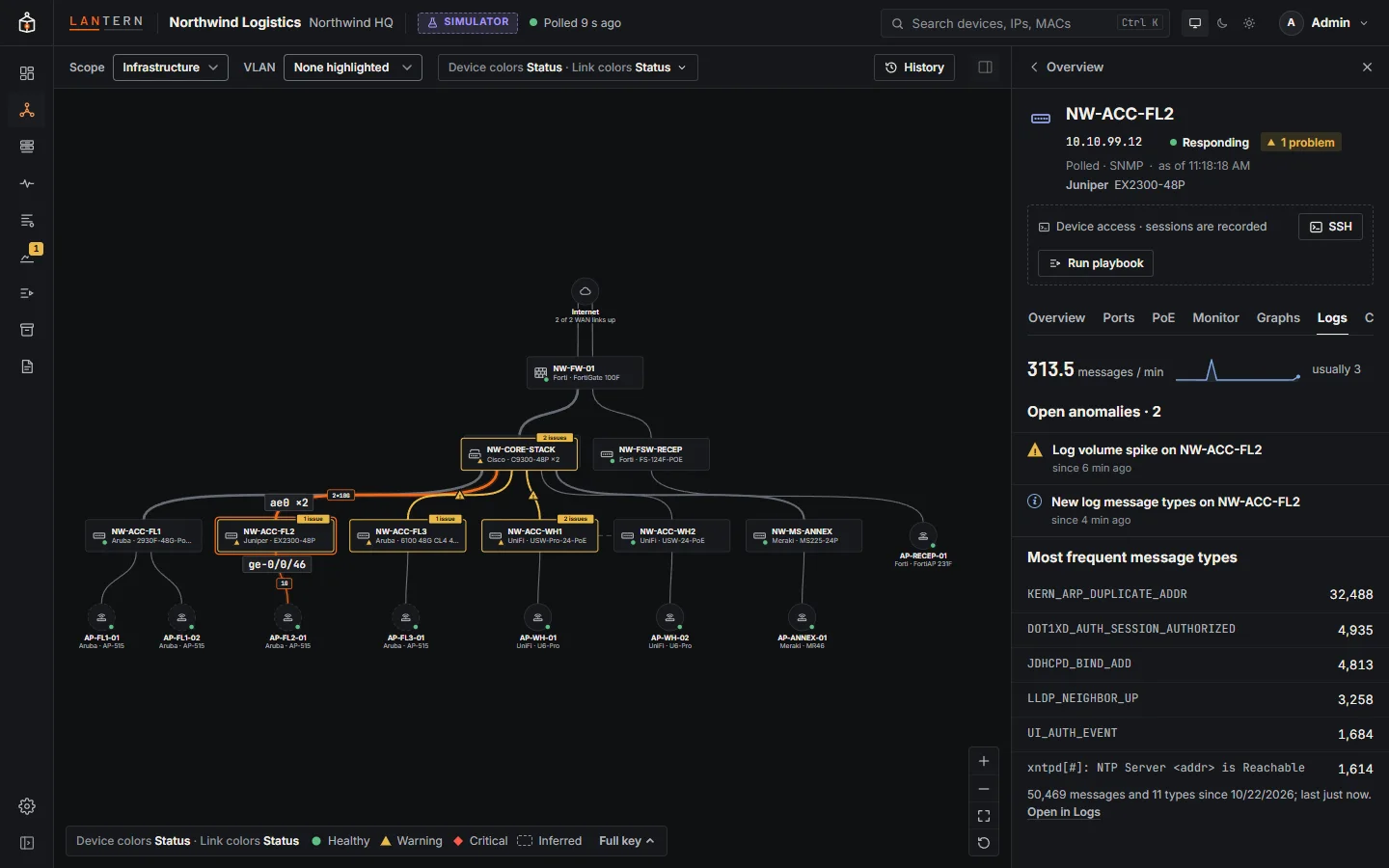
Select a device and open the Logs tab: its messages per minute and what is usual, a 24-hour sparkline, its open anomalies, and its most frequent message types. Open in Logs goes to the device's page.
Settings
In Logs › Settings, administrators can change:
- Volume detection: Low (spikes of 10 times the usual), Normal (5 times) or High (3 times).
- Learning period (1–30 days, default 3) and Log silence after (5–1,440 minutes, default 15).
- The thresholds for Login failures (per 5 minutes), Interface flapping, Topology changes and Severe messages (per 10 minutes).
- Keep resolved anomalies (7–400 days, default 90).
- Detectors: turn any of them off.
Expected configuration changes
To stop planned changes being flagged, add a maintenance window that names the device (Monitoring › Maintenance; see Monitoring), and make the change through Lantern's SSH sessions. Windows that only name monitors or tags are not used.
Limits in this preview
- At most 64 anomalies are open at once for the whole site, and 20 can open in 10 minutes. A resolved anomaly waits 10 minutes before it can open again.
- Each device keeps up to 300 message types, and at most 20 new ones are reported per hour.
- There are no per-device thresholds, and anomalies cannot be acknowledged or muted on the Logs page: acknowledge the network alert instead.
- Interface names in log lines are not checked against the device's real ports.