Docs Use Lantern
Documentation sync
Keep IT Glue or Hudu up to date with the devices and network Lantern discovers, one way and without deleting anything.
Lantern can keep your documentation platform current with what it discovers. Switches, firewalls, routers, access points and servers become configurations in IT Glue or assets in Hudu, with their hostname, management IP, MAC address, serial number, model and firmware, and the network gets its own summary with the site, status, topology and a VLAN table.
The sync is one way: Lantern writes to your documentation, never reads your notes back, and never deletes or archives anything.
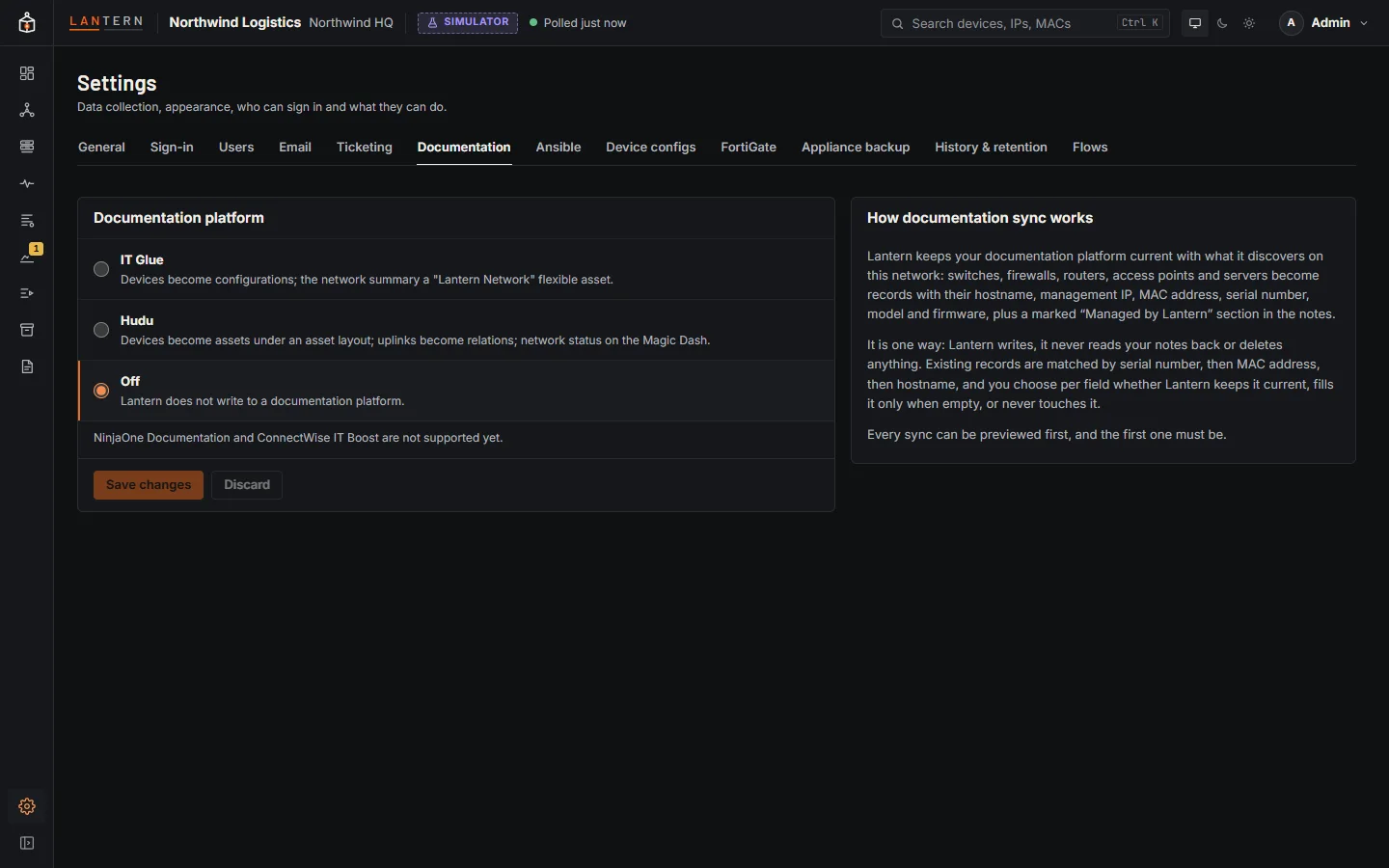
Set it up
Everything is in Settings › Documentation (administrators).
- Documentation platform: choose IT Glue or Hudu.
- Connection:
- IT Glue: choose the Region (United States, Europe or Australia) and paste an API key. Create a dedicated key for Lantern under IT Glue › Account › API Keys, with password access off.
- Hudu: enter the Hudu address (HTTPS) and an API key. Restrict the key to the customer's company and leave password access off, where your Hudu version allows it. Test connection checks it. The key is encrypted on the appliance and never shown again; if you change the Hudu address, enter the key again.
- Choose the Organization (IT Glue) or Company (Hudu) this customer's records belong to.
- What to sync: which kinds of device, and whether to write the Network summary. Endpoints are off unless you turn them on: they can run into the thousands and are usually documented by your RMM.
- Platform settings:
- IT Glue: the Configuration type for each kind of device, the Status for devices Lantern sees and the Status for missing devices, and whether Lantern may create missing manufacturers and models, add the management IP as a configuration interface, and create the Lantern Network flexible asset type.
- Hudu: Lantern's own layout or An existing layout with a Field mapping, and whether Lantern may relate devices to their uplinks and show network status on the company's Magic Dash.
- Fields Lantern writes (below), the Sync schedule and the Lantern address, then Save changes.
Preview, then sync
Preview changes shows exactly what a sync would do, record by record, without writing anything: create, update, unchanged, flag missing, back again or skipped, with the reason. The first sync always needs a preview, and so does the first one after you change the platform, organization, device kinds, field rules or layout. Then Sync now, or let the schedule run it.
The Sync schedule can be off (only when someone clicks Sync now), every 15 or 30 minutes, every hour (the default), every 6 hours or once a day. It starts after the first sync. History lists every preview and sync with its result; open one to see each record.
How records are matched
For each device, Lantern uses the record it linked on an earlier sync. Otherwise it looks for an existing record by serial number, then MAC address, then exact hostname. If two records match at a step, the device is skipped rather than guessed, so nothing is duplicated. A device with no match gets a new record.
Archived records are left alone. In Hudu, a device already documented under another layout is skipped with an explanation.
Fields Lantern writes
For records that already exist, you choose per field:
| Rule | Meaning |
|---|---|
| Keep current | Lantern writes its value whenever it differs. |
| Only if empty | Lantern writes only when the record has no value. |
| Never | Lantern never touches the field. |
By default name, MAC address, serial number, type, status, manufacturer and model are Only if empty, so your own naming and hand-typed facts win; hostname, management IP, firmware and the Lantern notes are Keep current. Lantern never empties a field. New records get every field that is not set to Never.
Lantern's facts go in a marked Managed by Lantern section of the notes. Lantern replaces only that section; anything you write before or after it stays as it is. The section holds structural facts only (role, model, firmware, management IP, site, uplinks and an Open in Lantern link when the Lantern address is set), so an unchanged network gives unchanged records.
Devices that disappear
A device Lantern stops seeing is not deleted. After the grace period (Flag missing devices after, 7 days by default) its record is flagged: the missing status you chose, and a Not seen by Lantern since … line in the notes. If the device comes back, both are undone. A device that only left the sync's scope (for example when you stop syncing access points) is left alone.
Limits and advice
NinjaOne Documentation and ConnectWise IT Boost are not supported yet.